October 11, 2013

Tips on Office Password Encryption and Decryption


So far, there are several versions of Microsoft Office released. And the popular versions are surely Microsoft Office 2007/2010. And among them, Word/Excel is used mostly. So now I mainly talk about some tips on Word/Excel password encryption and decryption/recovery.

How to Encrypt Word 2007/2010?

  
Encrypt Word 2007

  • Click the circle Office button on the upper left corner in the surface, then choose Prepare, and select Encrypt Word file from pop-up menu.
  • Then we can set up password for Word file in the dialog box of Encrypt Word file

Encrypt Word 2010

The encryption method of Word 2010 is similar to Word 2003.
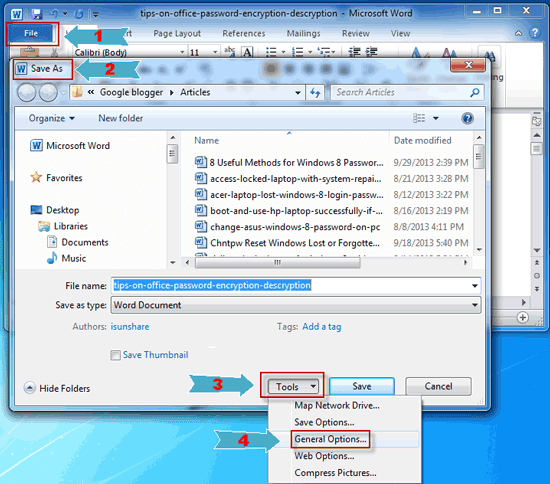
Click File, then choose Save as and follow these steps:
  • Click on Tools in the upper right corner of the file save dialog box.
  • Click on General Options 

  • The General Options box provides a variety of options: You can enter a password in the box next to Password to open if you wish the file to be completely inaccessible without the password.
    You can enter a password in the box next to Password to modify if it is OK for others to open the file, but you want to restrict who can make changes to the file.

  • Click on OK to close the General Options box
  • Select a name for your file and click Save

How to Recover Word Password?


About Word password recovery, Word Password Genius or Office Password Genius would work.
Just download one of them from website iSunshare. If you get Word Password Genius, follow below introduction.

  • Install and run it on your computer.
  • Click “Open” button to import encrypted Word file. You will see it in the “Encrypted File” later.
  • Choose one password attack from “Type of attack”.Four password attacks are available for you to choose, Brute-Force attack, Mask, Dictionary and Smart. 
  • 4. Click “Start” button in the menu.


How to Encrypt Excel Sheet?


The encryption method and process of Excel is similar to Word encryption basically, which can refer to encryption of Word. But Excel has Protection Function besides that.

  • In the Tools menu, click Protect, there are three protection types for choice.
  • If you click Protect Worksheet, a box will pops up, and you should enter password on it and setup allowable operating on the Excel Sheet for users.
Encrypt Excel Sheet 2010:


How to Recover Excel Password?


Similarly, Office Password Genius can recover Excel password with the same affection recovered by Excel Password Genius.

  • Download and install Office Password Genius/Excel Password Genius on computer.
  • Run it and open encrypted Excel sheet.
  • Choose appropriate password attack.If you still remember a part of password, “Mask” attack will help you in short time. However, if you have forgotten all of password, select “Brute-Force”, which is a powerful password attack type.  And there are some constraints on password range if you choose “Dictionary” attack. Smart attack isn’t used generally, but still works.
  • “Start” recovering Excel password.  

Besides, when Word/Excel is encrypted and you don’t know or forget open password, remove their password is another effective choice. Office Password Remover will give you a hand.


  1. Get Office Password Remover.
  2. Run it on your computer and click “Open” to import encrypted Office file.For example, Word/Excel/Access/Outlook/PowerPoint encrypted file can be imported into the software to remove their password.
  3. Click “Remove Password”.


October 7, 2013

Windows 8 Forgot Login Password on Lenovo Laptop


Forgot Windows 8 login password on Lenovo laptop? Let me tell you how to solve this problem or reset forgotten Windows password

First, you can think of whether there is other logon way available. For example, PIN code, picture password and Microsoft account are useful to login into Windows 8 computer.
Tips: Four Ways to Create Windows 8 Password and How to Use

Second, think about if password reset disk has been prepared. If the answer is yes, insert it into your Lenovo laptop and click “Reset Password” link on logon screen to reset Windows password with disk.
Tips: Two ways to create Windows password reset disk

When the above direct and easy ways couldn’t help you, the following methods will help you instead.

First of all, try to create a password reset disk with Windows Password Genius Advanced on another available computer. 


create a windows password reset disk

Download and install Windows password recovery tool on another computer. Insert prepared USB drive into this computer. Run password recovery tool and click “Begin Burning” on the second step. Naturally, password recovery disk will be burned into USB device.  Until message prompts you that “Burning Successfully”, exit USB device and get ready to reset Windows 8 password.

Next, plug USB reset disk into Lenovo laptop and boot it from USB. 


Just hold on pressing F12 when you start Lenovo laptop. It will automatically boot from USB instead of hard disk. When laptop boots from USB reset disk successfully, Windows password recovery tool will run in WinPE environment.   

reset windows 8 password


The last key step, select Windows system and user account to complete reset Windows 8 password.

 
Make sure Windows system right, and then choose login account you forgot password. Click “Reset Password”, and its password will be removed instantly. As you hope, add new account for Windows 8 is available too. After all the works finished, exit USB and click “Reboot” to restart laptop naturally from hard disk. Windows logon screen will don’t ask you to type password longer.

Besides, system recovery disk is available on Windows 8 password reset. After trying all these methods, believe one of them will help you. 

Related Posts:
  1. Acer laptop Lost Windows 8 login password
  2. Dell PC Locked Out of Windows 8 – Password Recovery without Administrator 
  3. Windows 8 Admin Password Forgotten on ThinkPad Laptop

September 29, 2013

8 Useful Methods for Windows 8 Password Reset

With the release and use of Windows 8, different kinds of problems come out at the same time, Windows password forgotten or lost included. In order to solve this thorny problem, now I compile 8 kinds of useful methods for Windows 8 password reset. Hope you can choose one appropriate to solve your Windows password forgotten problem.

September 26, 2013

How to Unlock Windows Server Domain Password Effectively


Locked out of Windows server and forgot domain password? I know the mood when you are trying your best to log into server computer but nothing works. So now follow my introduction to unlock Window server domain password effectively.
When we encounter this problem, the important thing we have to do is try to understand and accept some ways you probably never know. A lot of methods maybe have to be proved right after attempt. But the ways listed below have been confirm that they can help us.
  • Installation Disk and Command Prompt
  • Third-Party Windows Password Recovery Tool
  • Password Reset Disk


Way 1: Unlock Windows Server with Installation Disk


What you need: a copy of installation disk
Main and simple steps:
  1. Replace Utilman.exe
  2. Reset Windows server domain password with CMD

Step 1: Replace Utilman.exe

  1. Boot off the Windows disk and select the “Repair your computer” option from the lower left-hand corner.
  2. Follow through until you get to the option to open the Command Prompt, which you’ll want to select.
  3. First you’ll want to type in the following command to back up the utilman.exe file:
    MOVE C:\Windows\System32\Utilman.exe C:\Windows\System32\Utilman.exe.bak
  4. Now you will need to copy cmd.exe and rename it Utilman.exe:
    COPY C:\Windows\System32\cmd.exe C:\Windows\System32\Utilman.exe
  5. Now you can go ahead and reboot your machine. When it’s done booting up again and you are at the Logon screen click on the Ease of access icon.

Step 2: Reset Windows server password


Open a command prompt to change the password
Type: net user administrator *
Once you press Enter you will asked to set a new password and then confirm it, when entering your new password, don’t worry if you can’t see them as you type, they are invisible, they are however being remembered.
Tip: Once you’re logged in again don’t forget to delete Utilman.exe and then rename Utilman.exe.bak back to plain old Utilman.exe.

Way 2: Unlock Server Computer with Third-Party Windows Password Recovery Tool


So many Windows password recovery tools are available on Internet; choose one effective from them isn’t an easy thing. For convenience, I recommend you Windows Password Genius Advanced or Raid. Select advanced or raid version based on server type.

What you need to prepare:
  • Bootable CD/DVD or USB drive
  • Workable computer installed with any Windows OS
  • Windows Password Genius Advanced or Raid
Main steps:
  1. Create a password reset disk with third-party tool
  2. Reset Windows server domain password

Step 1: Create a password reset disk with third-party tool

  • First, install Windows Password Genius on workable computer and run it. 
  • Second, insert bootable drive, such as USB drive into computer. 
  • Third, Click “Begin burning” to start password reset disk burning.


Step 2: Reset Windows server domain password with disk

  • First, plug reset disk into locked server, and boot it from USB. 
  • Second, select Windows system and user account.
    For example, if your server is installed with different kinds of OS, choose the one system you couldn’t access.
  • Third, click “Reset Password” to set forgotten password as “iSunshare@2012”.
    Moreover, Add User gives you chance to create a new account.


Way 3: Password Reset Disk Unlock Windows Server


Maybe you observe that the first step of second way is to create a password reset disk. Are you thinking that, if I have reset disk, doesn’t third-party tool needed? It is.

Even though both are password reset disk, the process of unlock Windows server is different. Suppose that, password reset disk is created when server computer is accessible, you only have to click link “Reset Password” on logon screen after you type wrong domain password.

On range of application, they are different too. This kind of reset disk created on your computer just only works for your computer. However, the reset disk burned by third-party tool can be used to reset administrator and standard user password on any kinds of Windows systems.

September 24, 2013

Reset Windows 7 Admin Password Forgotten in Easy Ways

As we know, when we forgot admin password on Windows 7 computer, it will bring danger to data stored on computer. But most of us couldn’t realize the importance of the preparation for Windows logon password forgotten, even more about how to reset Windows 7 admin password. So now I share some easy ways that can solve it.

1. Password Reset Disk Work for Windows 7 Forgotten Admin Password


If you have a password reset disk, and everything becomes easy. Click “Reset Password” link on logon screen after you type wrong password. Just follow wizard and Windows 7 password reset could go on and finish successfully.

2. Another Administrator Change Windows 7 Password with Two Ways 

    
An account with administrator privilege could login laptop and change everything on computer, including change, remove forgotten admin password surely. So when you couldn’t access computer with account forgot password, switch user and sign in to Windows 7 with another administrator.
When you enter Windows 7 laptop successfully, there are two ways for you to choose for Windows 7 password reset. One is change or remove forgotten admin password through Control Panel; the other is reset forgotten Windows 7 admin password with Command Prompt.

2.1 Change or Remove Admin Password through Control Panel


Navigate to Control Panel - User Accounts and Family Safety, choose Add or remove user account. Select account you want to remove or change its password, and click “Remove Password” to make sure.

Remove Windows 7 Forgotten Admin Password


2.2 Reset Forgotten Windows 7 Admin Password with Command Prompt


Similarly, after sign into Windows 7 laptop, open command prompt.
Step 1. Open an elevated command prompt.
Step 2. In the elevated command prompt, type the command below and press Enter.
NOTE: Substitute UserName in the command below with the actual user name of the user account on the computer that you want to change the password for. Substitute NewPassword in the command below with the password you want for this user account.
net user UserName NewPassword
For example: My user account's name is iSunshare and I want to change the password to 12345, so I would type this below exactly and press Enter.
net user iSunshare 12345
Step 3. If successfully changed, then you can close the elevated command prompt.

Reset Administrator Password with Command Prompt

3. Windows 7 Password Recovery Utility Make Password Recovery Easy


For all the versions of Windows OS and password forgotten problem, Windows password recovery utility is the most universal method like password reset disk. The reason is that it is used to create reset disk first. And below operations are mainly to let locked computer boot from reset disk. Remove Windows 7 password with it.

Remove Windows 7 Admin Password by Click "Reset Password"

Besides these easy ways, you also can repair Windows 7 with system disk or ask for help from other people, or take it to computer repair shop. However, the methods will cost you much time and money. So try to form a habit of creating password reset disk or use Windows 7 Password Genius to burn one. 

September 22, 2013

How to Boot Dell Windows 7 Computer Successfully Forgot Password

How to boot dell Windows 7 computer successfully if forgot logon password? Remove password, recover or reset password, or bypass Windows 7 forgotten password?

Actually, the choices are available. The key step is to make sure what methods or tools could help you to remove, recover or bypass logon password.

As we all know, administrator can remove logon password. Just login into dell computer with it and navigate to Control Panel - User Accounts and Family Safety. Choose Add or remove user accounts under User Accounts and Family Safety. And then choose account you want to remove its password. Click Remove the password on the left lane of screen. Make sure and click Remove Password.


If you don’t have another administrator available, Windows password recovery tool will help you remove forgotten logon password, such as Windows 7 Password Genius.

What you should do is the following:
1. Create a password reset disk with Windows 7 Password Genius
2. Boot your dell computer from reset disk
3. Reset forgotten password to be blank by click “Reset Password”
The above are intended to remove forgotten password and boot Windows 7 without password.

Besides, are there other ways to reset or recover Windows 7 password? Surely, the answer is yes. Ophcrack is a free tool to reset Windows 7 password. But it doesn’t work for too long password.

1. Download it by search “Ophcrack” and install it on another computer.
2. Run it and burn it to CD drive.
3. Insert CD drive into dell computer
4. Set computer boot from CD
5. Recover forgotten password

Except, above available administrator can be used to change forgotten password. Or use Command Prompt to reset Windows password.

With the easy methods introduced above, believe you can boot Windows 7 dell computer successfully. 

Related Articles:

September 18, 2013

Chntpw Reset Windows Lost or Forgotten Amin Password

Have you heard too much about ways to reset Windows forgotten password? Now let me tell you a free tool for Windows password recovery - Chntpw.
Like other tools, Chntpw has two existence forms, USB and CD.
  • Reset Windows Lost Password with USB Disk
  • Recover Windows Forgotten Password with CD Disk


1. Reset Windows Lost Password with USB Disk


Follows the below steps:
Step 1: Grab Universal USB Installer and download Ubuntu 10.10.

Step 2: Create a Bootable Ubuntu Live USB
2-1: Run the Universal USB Installer and select Ubuntu 10.10
2-2: Click Browse to select the Ubuntu ISO file.
2-3: Select the USB drive and set the persistent file size.
Once all settings are in place, click Create to begin creating a bootable Ubuntu Live USB.

Step 3: Boot Computer from Ubuntu Live USB
3-1: Press ESC, F2, F10, F9 etc. to reboot PC and enter computer BIOS.
3-2: Set USB/Removable Hard disk as first boot option in the BIOS settings.
3-3: Save the changes and reboot the system from Ubuntu Live USB.

Step 4: Install Chntpw
4-1: Press Ctrl + Alt + T to open a Terminal window.
4-2: Type sudo apt-get install chntpw and click Enter.
The process of download and installation would go on without further assistance. Once it’s finished and your back at the regular prompt, simply type exit and hit Enter.

Step 5: Reset Windows Password
5-1: Mount the hard disk partition where Windows is installed in according to access all the removable drives and hard disk partitions from Places menu.
5-2: Mount the drive with Windows folder.
Open all partitions to find the drive with Windows folder. When you find it, make a note of the drive’s label that appears in the menu bar of the file browser.
5-3: Open Applications menu from panel, and select Terminal from Accessories menu.
In Terminal window, enter cd /media command, and then list all mounted media drives with ls command.
5-4: Navigate to drive that contains Windows folder.
Type:
cd <hard drive label>
cd Windows/System32/config
Open config folder and then you can make changes to Security Accounts Manager (SAM).
5-5: Read Windows user account credentials and make changes to save passwords with running chntpw tool.
sudo chntpw SAM
The sudo chntpw SAM command can only make changes to Windows admin account password. If you want to change standard user’s password, use the switch –u followed by correct user account name.
sudo chntpw –u <user account name> SAM

If you’ve changed the user account password, reboot your system, and exit Ubuntu Live USB. If you’ve just reset the admin password, Windows will not prompt you to enter the password. However, if you changed the password, please log in to Windows with new password.


2. Recover Windows Forgotten Password with CD Disk


Step 1: Download Chntpw to a computer you can access.

Step 2: Create a CD Windows password reset disk.
Unzip cd110511.zip and get a Chntpw ISO file and burn the Chntpw ISO file to CD disc with a burn tool.

Step 3: Set your locked computer boot from CD-ROM.
When power on the computer, press BIOS entry key to enter BIOS setting screen, and move CD-ROM to the first boot drive place. Save boot changes and boot your computer.

Step 4: Reset Windows password to blank
4-1 Select the partition where Windows was installed on:
select 1 = show propbable Windows (NTFS) partitions only
4-2 Select path and registry files
The default path Windows/system32/config is correct, so just press Enter to go on.
4-3 Select which part of registry to load, use predefined choices.
We want to reset password, so choose the first one: Password reset [sam system security]
4-4 What to do with the user and password
Select 1 – Edit user data and passwords
4-5 Select a user to reset its password.
As you can see, there list all the user names and their password status. If you want to change Administrator password, type Administrator and press Enter.
4-6 Clear (blank) user password.
Of all the options of menu, the first one Clear (blank) user password is the most simple and effective option. Select 1 to clear Administrator password to blank instantly.
4-7 Password is cleared successfully.
When the Password cleared pops up, it means password has been cleared successfully.
Quit out and press Ctrl + Alt + Del to restart computer, logging in to Windows without password.

All above introduction is about Windows password reset with free Chntpw. But maybe you will find it a little difficult.

More about this topic, you can refer to these articles: