Showing posts with label reset windows 7 password. Show all posts

March 31, 2014

How to Reset Windows 7 Password with or without USB Disk

USB flash drive is usually used to create password reset disk, burn Windows installation disc, Windows recovery drive, which could reset Windows 7 password. So USB disk usually appears in Windows password reset. In this passage, we will talk about Windows 7 password reset with or without USB disk.

Part 1: How to Reset Windows 7 Password with USB Disk


  • When you have USB disk with password reset disk, how to reset Windows 7 password?
  • When you have USB disk with installation disc, how to remove Windows 7 password?

Option 1: Reset Windows 7 Password with USB Password Reset Disk


Password reset disk is common boot disk for Windows password reset, applying to Windows 8.1/8/7/Vista/XP and Windows server 2012/2008/2003/2000. And it is created in Control Panel or with Windows password recovery tool, such as Windows Password Genius.

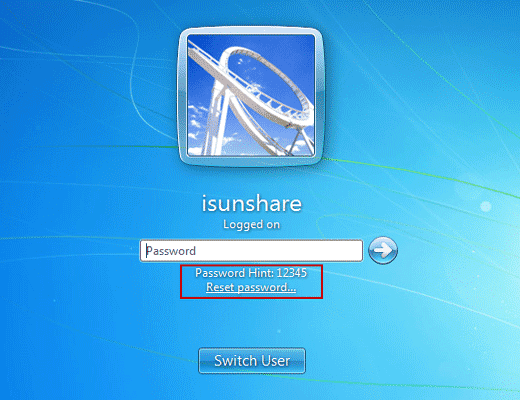
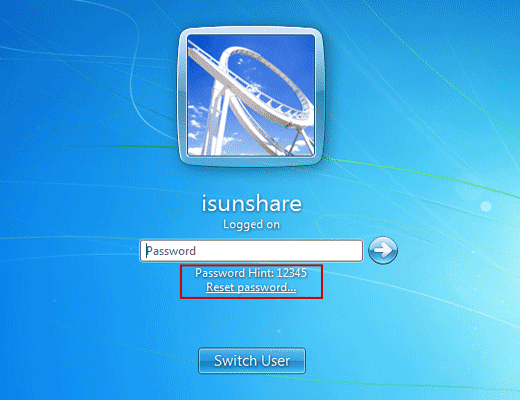
If it is created in Control Panel, just insert USB disk into your locked computer after you login Windows 7 failed. Click "Reset Password" on Windows 7 logon screen, and Windows forgotten password reset wizard appears. Follow it and go on to set a new password for current user account.

If it is created with Windows password recovery tool, such as Windows Password Genius, you have to insert USB disk into locked Windows 7 computer. And set computer boot from USB disk. When Windows Password Genius program runs in WinPE environment, select Windows 7 system and user account to “Reset Password”. This password recovery tool would remove forgotten Windows 7 user password. 

Option 2: Reset Windows 7 Password with USB installation disk


Installation disc is used to reinstall Windows 7 or repair Windows 7, in order to remove forgotten Windows 7 password. So make sure important data has been back up previously.

 
  1. Boot from Windows 7 DVD or USB Device.
    Insert Windows 7 USB installation disk into computer. And hold on pressing Del key.
  2. Wait for Windows 7 Installation Files to Load
  3. Wait for Windows 7 Setup to Finish Loading
  4. Choose Language and Other Preferences
  5. Click the Install Now Button.
  6. Wait for Windows 7 Setup to Begin
  7. Accept the Windows 7 License Terms
  8. Choose the Type of Windows 7 Installation to Complete
  9. Show the Windows 7 Advanced Drive Options
  10. Delete the Partition Windows is installed on
  11. Confirm the Partition Deletion
  12. Delete Other Operating System Related Partitions
  13. Confirm Additional Partition Deletions
  14. Choose a Physical Location to Install Windows 7 On
After it completes successfully, you will get Windows 7 clean install. Previous Windows 7 password has been removed. Now there has been no password for Windows 7 default administrator. So now you could login into Windows 7 computer without password.

Part 2: How to Reset Windows 7 Password without USB Disk


When you don’t have USB disk, CD disk is also available for Windows 7 password reset. Or create password reset disk with new bootable USB drive to reset Windows 7 password.

Option 1: Reset Windows 7 Password with system repair disc


  1. Plug the system repair disc in the CD/DVD drive of your locked Windows 7 computer. Restart the computer.
  2. A few seconds later, the screen displays Press any key to boot from CD or DVD. Press any key to boot the disc. If your PC still boots from the hard drive, you need to change the boot order in BIOS.
  3. Choose the Use recovery tools that can help fix problems starting Windows option. Click Next.
  4. On the next screen, you'll see various system recovery tools that can be used to repair your computer. Click on Command Prompt.
  5. In the Command Prompt window, type these commands one by one in order to replace the sethc.exe (Sticky Keys application) with the Command Prompt (cmd.exe).
    c:
    cd windows
    cd system32
    ren sethc.exe sethc.exe.bak
    copy cmd.exe sethc.exe
  6. Close the Command Prompt. Remove the system repair disc and restart your PC.
  7. Once you get to the Windows 7 login screen, hit the Shift key 5 times and it will open the Command Prompt window instead of the Sticky Keys application.
  8. Now to reset the password - just type the following command, replacing the username and password with the combination you want:
    reset user isunshare 123456
  9. Close the Command Prompt and you should be able to log into your PC using the new password.
  10. After getting into Windows 7, remember to rename the sethc.exe.bak back to sethc.exe.
  11. That's it – you have successfully reset your forgotten Windows 7 password.

Option 2: Create password reset disk with new bootable USB drive 


When there is no USB disk to reset Windows password, Windows Password Genius provides you another chance to create password reset disk, which could recover Windows 7 forgotten password and add new user account in locked Windows 7 computer.
  1. Prepare devices what are needed to create password reset disk with USB drive.
    Windows Password Genius, bootable USB flash drive, available computer.
  2. Install Windows Password Genius on available computer and insert bootable USB drive into computer. 
  3. Choose inserted USB drive and click "Begin burning" to burn password reset disk into USB drive. Exit it after successfully password reset disk creation.
  4. Plug USB password reset disk into your locked Win 7 computer, and boot computer from USB disk, you could remove Windows 7 password on Windows Password Genius program interface. After that, exit USB drive and reboot Win 7 computer.

Related Articles:

October 22, 2013

How to Reset HP Windows 7 Admin Forgot Password

Question:
I forgot HP computer Windows 7 logon password. How to reset it? I couldn’t remember whether I have another available administrator. And I have not realized whether password reset disk could help to reset Windows 7 password. So I have not created one when HP computer is available.

Summary:
Forgot HP computer Windows 7 admin password? This article introduces three ways to reset Windows 7 password around creating password reset disk. Through this passage, you will find password reset disk is so important for Windows password reset.

Answer 1: Recover Windows 7 Password with Offline NT Password Registry Editor


If you have not created a password reset disk, Offline NT Password Registry Editor can help you to create one on another computer but works for locked HP computer. But maybe it is a little difficult to operate because it is based on text console.


  • Get Offline NT Password Registry Editor and use a CD-ROM or USB to create a password reset disk.
  • Insert bootable USB disk or live CD into HP computer and boot from it.
  • As long as HP computer boot from bootable disk successfully, follow the instruction to finish Windows 7 password reset is not so hard.


Answer 2: Reset Windows 7 Password with Ophcrack


It is also a freeware for Windows 7 password reset like Offline NT Password Registry Editor.


 1. Download Ophcrack Vista free live cd
Ophcrack Vista free live cd only applies to Windows password combined with less than 5 numbers. If you want to recover longer password with characters, you have to choose more advanced Windows Password Genius tool.

2. Boot your computer from the CD from Ophcrack live cd
Insert Ophcrack live cd into your computer; Restart computer and click DEL or F2 or other boot keys that Windows system setup into BIOS setting option. Select CD-ROM as the first boot disk. And then save the changes and restart your computer again.

3. Recover Windows 7 password
You will see Ophcrack runs and find Windows 7 password automatically for you. Then the password will be found and in a list. But if your password contains any characters, the Windows 7 password would not be found.
Now you can get into Windows 7 with found password.

Answer 3: Recover Windows 7 Password with Windows Password Genius


Besides the below two ways to create password reset disk, Windows Password Genius can easily create one too.

  • Get iSunshare Windows Password Genius and install it on available Windows computer, Mac, or Android phone.
  • Prepare bootable USB device to create a password reset disk
  • After successfully creating a password reset disk, exit it and plug it into HP computer.
  • Set HP computer boot from USB.
  • Recover Windows 7 password.

Actually, Windows 7 password will be removed and be blank lately. Choose account and click "Reset Password" to remove Windows 7 password. Besides this, "Add User" is admitted too. Click "Reboot" to restart HP computer Windows 7 successfully.

Related Articles:

September 24, 2013

Reset Windows 7 Admin Password Forgotten in Easy Ways

As we know, when we forgot admin password on Windows 7 computer, it will bring danger to data stored on computer. But most of us couldn’t realize the importance of the preparation for Windows logon password forgotten, even more about how to reset Windows 7 admin password. So now I share some easy ways that can solve it.

1. Password Reset Disk Work for Windows 7 Forgotten Admin Password


If you have a password reset disk, and everything becomes easy. Click “Reset Password” link on logon screen after you type wrong password. Just follow wizard and Windows 7 password reset could go on and finish successfully.

2. Another Administrator Change Windows 7 Password with Two Ways 

    
An account with administrator privilege could login laptop and change everything on computer, including change, remove forgotten admin password surely. So when you couldn’t access computer with account forgot password, switch user and sign in to Windows 7 with another administrator.
When you enter Windows 7 laptop successfully, there are two ways for you to choose for Windows 7 password reset. One is change or remove forgotten admin password through Control Panel; the other is reset forgotten Windows 7 admin password with Command Prompt.

2.1 Change or Remove Admin Password through Control Panel


Navigate to Control Panel - User Accounts and Family Safety, choose Add or remove user account. Select account you want to remove or change its password, and click “Remove Password” to make sure.

Remove Windows 7 Forgotten Admin Password


2.2 Reset Forgotten Windows 7 Admin Password with Command Prompt


Similarly, after sign into Windows 7 laptop, open command prompt.
Step 1. Open an elevated command prompt.
Step 2. In the elevated command prompt, type the command below and press Enter.
NOTE: Substitute UserName in the command below with the actual user name of the user account on the computer that you want to change the password for. Substitute NewPassword in the command below with the password you want for this user account.
net user UserName NewPassword
For example: My user account's name is iSunshare and I want to change the password to 12345, so I would type this below exactly and press Enter.
net user iSunshare 12345
Step 3. If successfully changed, then you can close the elevated command prompt.

Reset Administrator Password with Command Prompt

3. Windows 7 Password Recovery Utility Make Password Recovery Easy


For all the versions of Windows OS and password forgotten problem, Windows password recovery utility is the most universal method like password reset disk. The reason is that it is used to create reset disk first. And below operations are mainly to let locked computer boot from reset disk. Remove Windows 7 password with it.

Remove Windows 7 Admin Password by Click "Reset Password"

Besides these easy ways, you also can repair Windows 7 with system disk or ask for help from other people, or take it to computer repair shop. However, the methods will cost you much time and money. So try to form a habit of creating password reset disk or use Windows 7 Password Genius to burn one. 

September 22, 2013

How to Boot Dell Windows 7 Computer Successfully Forgot Password

How to boot dell Windows 7 computer successfully if forgot logon password? Remove password, recover or reset password, or bypass Windows 7 forgotten password?

Actually, the choices are available. The key step is to make sure what methods or tools could help you to remove, recover or bypass logon password.

As we all know, administrator can remove logon password. Just login into dell computer with it and navigate to Control Panel - User Accounts and Family Safety. Choose Add or remove user accounts under User Accounts and Family Safety. And then choose account you want to remove its password. Click Remove the password on the left lane of screen. Make sure and click Remove Password.


If you don’t have another administrator available, Windows password recovery tool will help you remove forgotten logon password, such as Windows 7 Password Genius.

What you should do is the following:
1. Create a password reset disk with Windows 7 Password Genius
2. Boot your dell computer from reset disk
3. Reset forgotten password to be blank by click “Reset Password”
The above are intended to remove forgotten password and boot Windows 7 without password.

Besides, are there other ways to reset or recover Windows 7 password? Surely, the answer is yes. Ophcrack is a free tool to reset Windows 7 password. But it doesn’t work for too long password.

1. Download it by search “Ophcrack” and install it on another computer.
2. Run it and burn it to CD drive.
3. Insert CD drive into dell computer
4. Set computer boot from CD
5. Recover forgotten password

Except, above available administrator can be used to change forgotten password. Or use Command Prompt to reset Windows password.

With the easy methods introduced above, believe you can boot Windows 7 dell computer successfully. 

Related Articles: