January 6, 2022

How to Backup Different iPhones on the Same Windows Computer

 “I and my wife both using iPhones and we just got one Windows computer. Of course, both of us want to backup the phones regularly. But iTunes can not intelligently recognize they are two different iPhones and make the backup. Is there a way to backup two iPhones to one computer?”

I came across this question on the Reddit forum. Many people share their answers to this question. Some said you can just backup the two iPhones to one computer using one Windows account as the data will not be mixed; some said you can just go ahead to set up the second iPhone as the new iPhone and restore the backup because there is no data loss; Some recommends the third-party tool to finish the iPhone data backup. After going through these answers, I also have my own doubt: Can iTunes help to backup different iPhones on the same Windows computer?

The answer is definitely “Yes”.  You can backup different iPhones on the same Windows computer via iTunes. In order to verify this answer, several iPhones in different models are tested here.


backup different iphones in one same Windows computer


Test 1: Backup Two iPhones on One Windows Computer –Both can Easily Back up

In this test, iTunes does not log in to any account. And the two iPhones are connected separately.

Step 1: Connect iPhone 6s with the Windows computer and run iTunes. iTunes can quickly detect the iPhone.

Step 2: Go to click the small iPhone icon and then all information about the iPhone is classified. Hit the Summary tab on the left menu and then get iPhone 6s details and Backups parts.

Step 3: Check the box of This Computer and then click the Back Up Now button. iTunes can help to automatically back up the iPhone 6s data immediately.
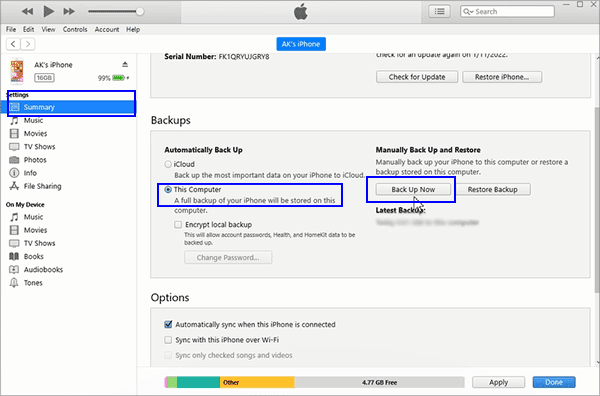

back up one iphone to computer

Step 4: After the completion, disconnect the iPhone 6s and then connect another iPhone –iPhone 8.  Next, just repeat the operations in Step 2 and Step 3, the iPhone 8 is backed up to the Windows computer in minutes.


back up another iPhone to computer

Both backup processes is completed successfully and did not come across any issues.  The two iPhone for testing is in the same iOS version.

Test 2: Backup Two iPhones on One Windows Computer –The Second One Needs to Set up as New iPhone

Another iPhone is chosen here for test—iPhone XS.  I plug the iPhone 8 out and reconnect the iPhone XS with the computer. At this time, when iTunes is opened, I only got the Welcome to Your New iPhone window. After choosing to set up the iPhone XS as the new iPhone, iTunes will know this iPhone is another device and create another record. If you insist in restore the iPhone from backup, actually, you will lose all the iPhone data and restore from other iPhone’s backup.


set up another iPhone as  new iPhone

 To get this issue solved, I search online and find the solution: Try to connect the two iPhones in different Windows account and then precede the iTunes backup. It means that you need to create two accounts to sign in to Windows. But in my opinion, I would rather try other ways to backup different iPhones on a computer.

Alternative Ways to Backup Multiple iPhones on the Same Windows Computer

Yes, from the above two tests, it seems that iTunes is not the best choice to backup different iPhones on the same Windows computer. I found the alternative tool—iSunshare iSyncGenius. This software can help to transfer iPhone data to Windows computers quickly and safely. What’s more important, it can separately store the backups for different iPhones even the backup path is the same.  Amazing? Yes, you can backup as many iPhones on one computer safely. Let’s see how it achieves.

Step 1: Connect the iPhones you want to back up to the Windows computer.  It is no need to connect the iPhone separately.

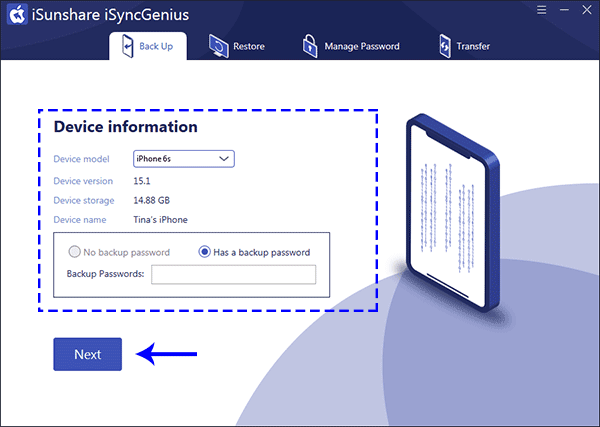
Step 2: Run iSyncGenius and then the backup interface is on.  You can click the drop-down icon on the Device model to choose the iPhone which you want to backup firstly. Here, iPhone 7 is chosen.  After that, click the Next button to continue.


select iPhone to back up

Step 3: In the next interface, All Backups are selected by default. This function is similar to iTunes Backup Now. You can get the listed data backed up after finishing.  After that, click the Choose button and pick the destination to save your iPhone backup data. It can be anywhere on your Windows computer.  When the backup path is set, just go to click the Start button to begin the process.


set backup path to save your iPhone backup

Step 4: The iPhone data will be backed up in minutes.  Then you can click the Finish button and repeat Step 2 and Step 3 to back up other iPhones.


finish iPhone backup


In the end, you can go to check the backup files in the destination folder. As I saved the backup in the same folder, I can find all those iPhone backups conveniently.


multiple iPhone backups in Windows computer

Someone may ask how to restore the backup if you need it. Don’t worry; you can also utilize the Restore function of this software to restore the iPhone backup. 


Related Articles:

  1. How to Transfer Backup Data to New iPhone
  2. How to Backup iPhone to Windows PC
  3. How to Backup iPhone to External Hard Drive on Windows and Mac
  4. How to Backup Your iPhone Through iTunes 

October 31, 2021

How to Transfer Contacts from iPhone to PC without iTunes or iCloud

 Contacts play an essential role in our lives.  In today’s digital life, you have many activities that are associated with contacts. For example, Facebook will recommend your friends, according to your iPhone contacts.  Thus, it is highly recommended to export all contacts from iPhone to your PC.  In this article, we will share with you the details about how to transfer contacts from iPhone to PC.

transfer contacts from iPhone to pc

Way 1: Backup Contacts from iPhone to PC via iTunes

 iTunes is well known to all Apple users as it offers a convenient way to sync iPhone data to the computer. But to backup iPhone contacts from iPhone to Windows PC, you need to backup all the iPhone data as iTunes does not allow you to backup only contacts to the computer.

Step 1: Update your iTunes on the computer and then plug the iPhone into your computer. iTunes will detect the iPhone and sync the data.

Step 2: You need to tick the iPhone icon and click on the Summary option. After that, you can see the Backups part in the right panel.

Step 3: Choose This Computer option under Automatically backup part and then click on Back Up Now option under Manually Back Up and Restore section.

backup iPhone to this computer

Step 4:  The iPhone data is backed up.  Contacts are saved on your computer. You can restore it to your iPhone when it is needed.

the iPhone is backed up

Way 2: Export iPhone Contacts from iPhone to PC without iTunes

 If iTunes fails to sync your iPhone data but only offers the restore option, you can use iCloud to export iPhone contacts from iPhone to PC.

Step 1: First of all, you should enable Contacts to sync on iCloud on your iPhone.  Just go to Settings > iCloud > Contacts and then turn it on.

Step 2: Sign in to the iCloud official website and then click on the Contacts option.

sign in iCloud and choose Contact

Step 3: Then all contacts on the iPhone will be loaded. You just need to click on the setting icon on the bottom-left corner and then choose Export vCard. In no time, the contacts will be downloaded on your PC.

export contact to your PC


Way 3: Transfer iPhone Contacts to PC without iTunes and iCloud

 When your iCloud is out of storage and iTunes fails to back up the iPhone data, how could you backup contacts to the Windows computer? iSunshare iSyncGenius offers you a much easier way to transfer only contacts from iPhone to PC.  You can keep multiple contact files on the computer.

Step 1: Build the connection between the iPhone and your PC via the USB cable. After that, open the application. At the same time, unlock your iPhone and click Trust in the pop-out box that asks for your permission.  In no time, iSyncGenius will recognize your iPhone.  If the iPhone is set with the backup password, enter the password and click on the Next button.


load iPhone in iSyncGenius

Step 2: Click on the Classified backup option and then iSyncGenius will load the iPhone data. Now tick the Contacts option and set the path to save the contacts backup file.  Afterward, click the Start button.

select Contact option to backup

Step 3: When the process ends, you can go to view the contacts on your Windows computer. They are saved as XML file. 


Related Articles:

  1. How to Backup iPhone to Windows Computer with or without iTunes 
  2. How to Transfer Photos from iPhone to Laptop on Windows 10
  3. How to Restore Contacts on My iPhone from Backup 
  4. How to Sync iPhone to iTunes after Passcode Forgot  

September 27, 2021

How Can I Edit A Secured PDF without Password

 “I got a PDF from my teammate and I was going to edit some of the content. But when I entered the password, it says the permission password is wrong. Now I failed to contact my teammate as he was on holiday. So, how can I edit a secured PDF without a password?” 

Generally, when we secure the PDF with a permissions password, we do not want others to copy, edit or print the content. But when you forgot the PDF permission password, how to edit a secured PDF without a password? In this article, we summed up three common methods for you. 

Method 1: Official Method from Adobe Acrobat 

Method 2: Manually Remove Edit Restriction of PDF via Google Chrome 

Method 3: Easy to Edit a Secured PDF with Professional PDF Permissions Remover 

Method 1: Official Method from Adobe Acrobat 

We found a solution from the Adobe help center, which enables users to make the secured PDF editable. But this method can only apply to the situation that you are the PDF owner.

Step 1: Open the secured PDF with Acrobat DC.

Step 2: Access File >Print. 

Step 3: In the pop-out prompt, select Adobe PDF as the printer and then hit the Print option. 

Step 4: Enter a new name for the PDF file and then click on the Save button. After that, you can get a new PDF file without the limitation. You can open and edit it freely in Acrobat. 

print option

Method 2: Manually Remove Edit Restriction of PDF via Google Chrome 

There is a built-in PDF reader in Google Chrome. You can take advantage of it to unsecure a secured PDF file. But you must make sure that the PDF print function is not restricted. Otherwise, you will not succeed in removing the PDF permission password so as to edit the PDF. 

Step 1: Launch Google Chrome and then drag & drop the protected PDF into Google Chrome browser. 

Step 2: Click on the Print icon once you access the PDF. If there is a document open password, you need to enter the password to get the PDF viewed. 

Step 3: Check the Save as PDF option and hit the Save button. 

Step 4: After that, you can open the PDF in Adobe Acrobat again and edit the content in your way. 


Method 3: Easy to Edit a Secured PDF with Professional PDF Permissions Remover 

There is a much easier way to remove the limitation on PDF content. You can try the professional PDF password permission remover tool—iSunshare PDF Unprotect Genius to regain the ability to edit, copy and print. This tool deserves your trust as it would never do harm to the PDF content. If you forgot the PDF permissions password, this program will help to remove the restriction of PDF in minutes. What a time-saving tool! 

iSunshare PDF Unprotect Genius gives you the option to open the unprotected PDF directly without entering any password. Moreover, it supports you to remove the secured PDF with the known document open password. 

Step 1: Download and install the application on your Windows computer. 

install iSunshare PDF Unprotect Genius

Step 2: Click the folder icon on the first section to import the secured PDF. 

import secured PDF

Step 3: The default destination location is on your computer desktop. You can change the location to save your unprotected PDF.

set PDF destination path

Step 4: Click the Start button to remove the PDF restriction. In the end, a message box will pop up to notify you that “Successfully Removed! Open it now?” You can click on the OK button to view and edit the content. 

successfully removed PDF restriction


March 20, 2021

How to Fix My iPhone Keeps Turning Off Randomly

 Do you encounter your iPhone keeps turning off randomly by itself? It must be very frustrating. Take it easy! This post is specially prepared for this situation. In this post, we will explain why your iPhone keeps turning off randomly and show you five effective methods to fix this issue in ease.

  • What causes an iPhone to keep shutting down randomly?
  • Method 1: Force restart your iPhone
  • Method 2: Update iOS version to the latest
  • Method 3: Fix with iOS repair tool without data loss
  • Method 4: Restore with iTunes in Recovery Mode (loss data)
  • Method 5: Contact Apple Support
  • Conclusion

What causes an iPhone to keep shutting down randomly?

There are various kinds of reasons why an iPhone keeps shutting down randomly. Some main causes are listed as follows.

Unstable iOS update. The process of iOS updating is interrupted for various reasons causing there is something wrong with iOS. As a result, iPhone keeps shutting down suddenly.

Hardware Problem. If iOS is stable, it is very likely that there is something wrong with hardware like screen or motherboard. A broken hardware component could be the culprit of iPhone turns off randomly.

Unstable driver: If a driver on the iPhone is unstable because of damage to the internal system of the iPhone, it may also cause the iPhone keeps turning off randomly.

Method 1: Force restart your iPhone

Restarting your iPhone is a simple and worth trying way to fix any issue of iPhone. If a normal restart cannot work, you can try to force restart it. The ways to force restart iPhone vary depending on iPhone model.

iPhone 8 and later

Press and release the Volume Up button. Then press and release the Volume Down button. Finally, press and hold the Side button and then release when the Apple logo appears.

iPhone 7/7 Plus

Press and hold the Volume Down button and the Power button at the same time and then release both when the Apple logo appears.

iPhone 6 and earlier

Press and hold the Home button and Power button at the same time and then release both when the Apple logo appears.

how to force restart iphone

Method 2: Update iOS version to the latest

A new iOS version can fix some software issues and system bugs. If the iOS version of your device is outdated, you can follow the steps below to update iOS version to the latest to fix this issue of iPhone keeps turning off randomly.

Steps: Go to Settings > General > Software Update. If a new iOS update is available, a notification will be displayed. Then tap Download and Install. Wait for a moment and the iPhone will reboot up when the update is finished.

update ios version

Method 3: Fix with iOS repair tool without data loss

System errors could be the culprit of iPhone keeps turning off by itself. In this case, repairing iOS is the way out. iSunshare iOS Repair Genius is recommended here to fix the issue of iPhone keeps turning off randomly. As a powerful iOS repair tool, iSunshare iOS Repair Genius can fix various types of iOS problems without further ado. Such as tiktok app keeps crashing on iPhone, iPhone stuck on Apple Logo, update screen and so on.

Preparations:

1.     Download and install this tool on your Windows computer.

2.     Make sure that your iPhone is connected to computer.

3.     Install iTunes to make this tool run more smoothly.

Step 1: Firstly, launch this tool and click Standard Mode on the left side. Then click Start button on the next page. If your iPhone is well connected with computer, click Next to move on.

select repair mmode

Step 2: Then the tool will detect your device and show you the available firmware package. Click Download button to download it.

download firmware package

Step 3: Once downloaded, it will be verified automatically. Then click Repair button to start fixing your device. After a while, a popup dialog tells you it has been repaired successfully. Finally, you will get a new iPhone that can work normally.

repair iphone

Method 4: Restore with iTunes in Recovery Mode (loss data)

If you don’t care about the data on your iPhone, you can try to restore it to factory settings with iTunes. Detailed steps are listed as follows.

Preparations:

1.     Download and install iTunes of latest version on your computer.

2.     Connect iPhone to computer and put it into Recovery Mode. If a message box pops up asking if trust this computer, click Trust to continue.

Steps: Open iTunes and it can detect your iPhone automatically. Select your device when it appears on iTunes screen. Then Click Restore [your device]. On a popup window, click Restore again to confirm. It will take some time to erase your device and install iOS of new version. Once finished, your device will be factory reset and reboot up automatically.

restore iphone with itunes

Method 5: Contact Apple Support

If all the methods above don’t apply to you, there is a high probability that the hardware of device is broken such as motherboard or battery. In this case, you need to send it to Apple store to get it repaired. They can offer the best support options to help you solve all kinds of hardware issues.

Conclusion

No matter what causes your iPhone to turn off by itself, as long as you read this guide and follow the detailed steps above, your device can get back to normal in most cases. If your iPhone or iPad always encounters with system problems like stuck in spinning wheel, white screen of death or lagging and freezing, it is highly recommended to use iSunshare iOS Repair Genius to fix these issues. It can enable you to easily fix most common iOS system problems like an expert.

February 24, 2021

How to Recover Deleted Videos from PC in Windows 10

 If you unintentionally delete videos in Windows 10, is there any way to recover them? The answer is YES! You can recover the deleted videos from your computer in a high success rate as long as you get a right way. In this post, we will introduce to you three effective ways to recover videos from PC in Windows 10.

  • Way 1: Recover deleted videos from Recycle Bin
  • Way 2: Recover deleted videos with data recovery tool
  • Way 3: Recover deleted videos by Windows 10 Backup

recover deleted videos from pc in windows 10

Way 1: Recover deleted videos from Recycle Bin

Recycle Bin in Windows 10 is used to store the deleted files or folders temporarily before they are permanently deleted by user. When you delete video by accident or find that the video is lost from your computer, the first choice that you should consider is to recover it from Recycle Bin. Here is how to do.

Step 1: Double-click the icon of Recycle Bin on the desktop to open it.

Step 2: Type .mp4 in the search box in the top right corner of interface.

Step 3: The deleted videos of mp4 format will be shown on the screen. Right-click the video that you want to restore and select Restore option. Finally, the deleted videos will be restored to the original location.

recover deleted videos from recycle bin

Way 2: Recover deleted videos with data recovery tool

If you can’t find out the deleted videos in Recycle Bin, it may be deleted permanently from your computer. In this case, you can use data recovery tool to recover the deleted videos. iSunshare BitGenius is a powerful and trustworthy data recovery tool that can recover lost data from NTFS&FAT32 partition or drives in Windows computer. It can also help you easily recover the deleted videos in Windows 10. Here are detailed steps.

Step 1: Download and install iSunshare BitGenius on your Windows 10 computer.

Step 2: Launch it and click the hard drive that the deleted video located in the Hard Disk Drives section. If you remember the detailed location of deleted video, you can choose to customize a location to find it more quickly. Then click Start button.

select hard drive

Step 3: The tool will take some time to scan the deleted files. Once completed, all the lost files including videos will be displayed on the interface. Then click Filter button. In the new popup window, check the checkbox of Videos and then click Apply button. Then all the deleted videos will be shown on the right pane. Select the videos that you want to recover and click Recover button.

filter videos from the scanning results

Step 4: Select a location for the deleted videos.

select location

Step 5: At last, the deleted videos are restored to your computer. Then a tips box pops up to ask you if open the recovery folder. Click Yes button and you will see all the deleted ppt files are recovered successfully.

click yes

Way 3: Recover deleted videos by Windows Backup

There is a feature named Windows Backup in Windows 10 that allows you to back up the partition as you want. If you turn on this feature, the system will automatically back up your partition on schedule. So, if this feature is turned on in your Windows 10 computer, you can try to restore the partition to get the deleted videos back.

Step 1: Open Control Panel and click Backup and Restore option.

click backup and restore

Step 2: Click Restore my files button.

click restore files

Step 3: In the new popup window, click Search button.

search

Step 4: In the search box, type .mp4 and click Search button. Then all the video files are displayed on the screen. Check the checkbox of the video that you want to restore and click OK button.

select the videos that you want to restore

Step 5: Click Next button.

next

Step 6: Select a location and click Restore button.

restore

Step 7: Finally, the deleted video is restored successfully. However, the downside of this way is that you just can restore one video file at one time.

finished

January 20, 2021

How to Fix iPhone Grey Screen

 “My iPhone 7 screen suddenly goes gray. No matter what I do, it does not make responding. How can  I do to get iPhone 7 out of grey screen?”

The iPhone grey screen can lead to the death of an iPhone so it is also called the iPhone grey screen of death. When your iPhone screen turns gray, what you can do to get out of the grey mode? Read this article and you can get the answer.

how to fix iPhone grey screen

Way 1: Force Restart iPhone

When the iPhone fails to turn on and displays a grey screen, the first action you should do is to force restart the iPhone to check whether it works or not:

For the iPhone 8 and above users, you can press and quickly release the volume up button and then do the same to the volume down button. After that, press and hold the side button until you see the Apple logo.

If you are using iPhone 7, you can press and hold both the volume down button and the Sleep/Wake button at the same time until you see the Apple logo. After that, release the buttons.

For iPhone 6 and earlier iPhones, you can press and hold the Sleep/Wake button and Home button until the Apple logo appears.

force restart iPhone

Way 2: Try to restore iPhone in iTunes

When your iPhone screen is gray, you can take iTunes into considering solving the issue. It should be notice that all information and settings on iTunes will be deleted if you choose to restore the iPhone in iTunes with the following procedure:

Step 1: Launch iTunes on your computer and then connect the iPhone with grey screen to the computer.

Step 2: After iTunes detects the iPhone, you can click the icon near the top left of the iTunes to enter your iPhone interface. After that, click Summary on the left panel.

Step 3: On the right panel, click Restore iPhone and then it will pop out a box that asks for your confirmation again. Click Restore to continue.

Step 4: Then, you just need to wait for iTunes to download the software firmware for your iPhone and then restore it to factory settings so that the iPhone grey screen can be fixed.


restore iPhone in iTunes

Way 3: Fix iPhone Grey Screen with iSunshare iOS Repair Genius

If your iPhone is stuck on the grey screen and you cannot turn it on by all possible means, there could be an error in the iOS system. You can use iOS system recovery software, such as iSunshare iOS Repair Genius, to fix the iPhone grey screen and then get iPhone back to normal.

Step 1: Download and install iSunshare iOS Repair Genius on your Windows computer. To enjoy the full functionality of this software, you need to purchase the full version.

Step 2: Launch the software and then choose the Standard Mode.

choose the Standard Mode

Step 3: Next, click the Start button and then connect the iPhone to your computer.

click the Start button

Step 4: After that, click the Next button.

click the Next button

Step 5: Check your iPhone iOS version and the model version in this interface and then click the Download button to get the firmware package for the iPhone. After downloading, the software will start o verify the firmware.

download the firmware package

Step 6: When the firmware has been verified successfully, you will go to the repair window. By clicking the Repair button, iSunshare iOS Repair Genius will automatically fix your iPhone and you should make the iPhone connected during this process.

click the Repair button

In the end, your iPhone will be repaired and there will not be data loss. You can check the iPhone is rebooted and enter the screen lock interface if you have set the screen password.

Related Articles:

  1. 5 Effective Solutions to Fix iPhone White Screen of Death
  2. How to Fix iPhone Screen Goes Black Randomly
  3. Fixed: iTunes Stuck on Waiting for iPhone
  4. 8 Easy Methods to Fix iPhone Keeps Restarting Itself  


December 29, 2020

5 Effective Solutions to Fix iPhone White Screen of Death


“When I tried to update my iPhone 11 from iOS 13 to iOS 14, there was something wrong with my iPhone. I set it aside during the upgrade, and when I took my iPhone again, I found it was stuck on white screen of death. I didn't know what happened. I had tried lots of methods to rescue it but none of them worked. What should I do?”

iPhone white screen of death is a very common and vexed system problem of iOS devices and there are various kinds of reasons for this problem. In this post, you can learn about the cause of iPhone white screen of death and five effective solutions to fix this problem. Even if you are a noob, you can also repair your iPhone with your own hands like a technician after reading this post.

  • Some common causes of iPhone White Screen of Death
  • Solution 1: Hard reset your iPhone
  • Solution 2: Check if Screen Magnification is on
  • Solution 3: The best way to fix iPhone white screen of death without data loss
  • Solution 4: Restore iPhone with Recovery or DFU Mode by iTunes
  • Solution 5: Contact Apple Support

fix iphone white screen of death

Some common causes of iPhone White Screen of Death

1. iOS update failed

This is the main reason for Apple's white screen. Although updating iOS can fix some bugs, the existence of certain conflicts may cause the system fail to update and white screen of death.

2. Software upgrade failed

Sometimes the issue of white screen of death occurs after software upgrade. Some major software may be incompatible with the system after updating.

3. Jailbreak issue

Jailbreak refers to privilege escalation on an Apple device to remove software restrictions. However, if you use some unreliable tool to jailbreak your iPhone, it may fail to jailbreak and damage iOS resulting in iPhone white screen of death.

4. Hardware problem

If iPhone white screen of death appears after it is physically or water damaged, it is likely that one of iPhone components has been broken. So, the iPhone cannot work normally.

7 Effective Solutions to Fix iPhone White Screen of Death

Solution 1: Hard reset your iPhone

When your device encounters a problem, the first choice for most people is to restart it. However, a general restart will not work in most cases. So, you can try a hard restart to fix the issue of iPhone white screen of death. Here’s how to hard reset iPhone of different versions.

iPhone 6 and below

1.      Hold down the Power and Home buttons at the same time.

2.      Keep holding both buttons until the screen turns black and you see the Apple logo.

3.      When the phone goes off, wait for 30 seconds before powering it back on.

iPhone 7

1.      Hold down the Power and Volume Down buttons at the same time.

2.      Keep holding both buttons until the screen turns black and you see the Apple logo.

3.      When the phone goes off, wait for 30 seconds before powering it back on.

iPhone 8 and above

1.      Hold down the Volume Up button, then release it.

2.      Hold down the Volume Down button, then release it.

3.      Press the Power button until the Apple logo appears before releasing it.

Solution 2: Check if Screen Magnification is on

Sometimes, there is a chance that you may turn on Screen Magnification function by accident. In this case, you may be zoomed super close in on something white which makes it look like a white screen. Hence, to fix it, you can follow the steps below.

Steps: Go to Settings > General > Accessibility > Zoom > Off.

screen magnification


Solution 3: The best way to fix iPhone white screen of death without data loss

The best way to fix iPhone white screen of death is to use a powerful tool named iSunshare iOS Repair Genius. It is a powerful and easy-to-use ios repair tool that enables you to fix most of common system issues like white screen of death without any data loss. Here’s a full guide on how to use iOS Repair Genius to fix the problem of white screen of death.

Step 1: Download and install this app on your computer. Open this app and connect your iPhone to computer.

Step 2: Select Standard Mode to fix your iPhone without data loss.

select standard mode

Step 3: Click Start button to continue.

start

Step 4: Make sure that your iPhone is connected to your pc and click Next button to continue.

click next

Notes: If the app can’t detect your iPhone, you need to put it in DFU Mode or Recovery Mode. Just follow the guide on the interface.

Step 5: Click Download button to download a firmware package. You can click Select button to choose the location to store firmware package.

download firmware

Notes: On the bottom of interface, you can also click Copy button to download it in a browser and then click Select button to import it to app.

download firmware in browser

Step 6: Wait for the application to verify the firmware, then click Repair button to start repairing.

repairing

Step 7: It may take some time to wait. Once the process of repair is done, the app will prompt you that the device has been repaired successfully. Click OK to close the window.

repair successfully

Finally, the issue of white screen of death has been solved and your iPhone can work normally again. If not, you can try to fix it with the other repair mode of this app (Advanced Mode). But it will factory reset your iPhone and all the data will be erased.

Solution 4: Restore iPhone with Recovery or DFU Mode by iTunes

When your iPhone is stuck on white screen of death, you can restore it to get it back to normal. However, all the data will be erased. If you don’t care about the data, follow the steps below to fix your device.

Step 1: Open iTunes and connect your iPhone to computer via USB cable.

Step 2: Put your iPhone into Recovery Mode or DFU Mode. You can try the Recovery Mode first and then the DFU Mode. 

Step 3: If you put your device into DFU Mode, you will be asked to restore your iPhone, click OK button to continue.

restore iphone with dfu mode

 Step 4: If you choose to put your device into Recovery Mode, there will be two buttons on the pop-up window, select Restore button and then wait for a while util the whole process finishes.

restore iphone with recovery mode

Step 5: Finally, when iTunes finishes restoring, your iPhone will restart automatically, your iPhone comes back to normal.

Solution 5: Contact Apple Support

If all the ways mentioned above are not workable, it's probably a hardware problem that causes iPhone white screen of death. In this case, you need to contact Apple Support for help. They can offer the best support options to help you solve all kinds of hardware issues.