July 24, 2015

How to Restore Locked iPhone Lost Data without Passcode

While iPhone is locked because of passcode forgot, how can I restore iPhone lost data?

After connecting iPhone to computer and trying our best to restore iPhone data from iTunes backup, the iTunes prompts that I have to type in passcode to unlock iPhone first, otherwise I cannot restore iPhone data from backup in iTunes.

How should I do for iPhone data recovery when there is iTunes backup in hand?

Maybe you need an iPhone data recovery tool. What you should do is to get such data recovery software, and prepare to install and run it on your computer. If you could not find a powerful one for restoring iPhone data, please follow the steps below to restore locked iPhone lost data with iOS Data Genius.

Step 1: Search and get iOS Data Genius on Windows computer.

You can search iSunshare iOS Data Genius directly in Google to open its webpage. Learn about its detailed information and download trial version to have a try. Then install it on Windows computer.

Step 2: Choose iPhone data recovery mode.

When iSunshare iOS Data Genius runs on computer, please click Recover from iTunes Backup File and select this data recovery mode. Then choose right backup file in backup list for your iPhone.

prepare to recover iPhone lost data from iTunes backup

Step 3: Scan iPhone iTunes backup file to preview data.

Tap Start Scan button after selecting iTunes backup file for iPhone.  About few seconds later, iPhone iTunes backup scanning is finished. Now in new interface, you can preview data in backup file one by one.

preview iPhone lost data in iTunes backup

Step 4: Restore iPhone data from iTunes backup file.

While you can confirm which data you want to restore, check the data and click Recover button. Then these backup data would be restored and saved on computer. At this moment, you have successfully recover iPhone data from iTunes backup file with iOS Data Genius. You can view lost iPhone data on computer now. Or transfer data from computer to iPhone. 

save restored iPhone lost data in computer

recover iPhone data from iTunes backup successfully

Summary:

Without passcode, how to restore iPhone lost data?
  1. Restore iPhone to factory settings and then recover data from iCloud backup.
  2. Recover iPhone data from iTunes backup file with iOS Data Genius.
Related Articles:

July 6, 2015

How to Recover iPad Deleted Files | iPad File Recovery

If your iPad files are deleted or lost because of iPad damage, iPad factory reset, iPad iOS upgrade etc, how can you effectively recover iPad deleted files?

I think this article could help you a lot if there are no other methods for you. Two powerful ways below would tell you how to retrieve iPad lost files from iTunes backup or your iPad.

Way 1: Restore iPad Deleted Files from iTunes Backup


With iTunes backup in hand, you could not only restore iPhone/iPad/iPod data directly from backup, but also only extract the data you want from iTunes backup with iOS Data Genius. When you have decided to recover iPad files from iTunes backup, please choose to directly make full use of iTunes backup or take iOS Data Genius with more efficiency.

Choice 1: Directly restore iPad deleted files from backup with iTunes


Step 1: Connect your iPad to computer and run iTunes.

Step 2: Click iPad on iTunes top right side to open iPad main window.

Step 3: In Backups part, click Restore Backup and choose a backup in pop-up dialog. Then click Restore to restore iPad from backup.

restore iPad deleted files from iTunes backup directly

After backup data restored to your connected iPad, would know what have been recovered when you open your iPad to see. So selecting a right iTunes backup for iPad file recovery becomes important for you.

Choice 2: Recover iPad deleted files from iTunes backup with iOS Data Genius


Step 1: Install and run iSunshare iOS Data Genius on Windows computer.

Step 2: Choose Recover from iTunes Backup File recovery mode and tap Start Scan button.

choose iPad iTunes backup in iOS Data Genius

Step 3: Preview iPad files from iTunes backup in new screen.

preview and recover iPad deleted files from iTunes backup

Step 4: Select the iPad files on the left side and click Recover button.

Then browse a folder on computer to save iPad deleted files. Until a message prompts you iPad files recovery successfully, tap OK to exit iOS Data Genius and see iPad deleted files on computer.

Compared to the first choice, believe you have realized that you could choose iTunes backup file and recover iPad data more appropriately. At the same time, you could exit iPad file recovery process and does no influence on your iPad.

Way 2: Recover Deleted Files from iPad with iOS Data Genius


iOS Data Genius will not only recover iPhone/iPad/iPod lost deleted data from iTunes backup, but also recover iOS data from iPhone/iPad/iPod. Surely, you can run iOS Data Genius to recover iPad deleted files without iTunes backup.

Step 1: Run iOS Data Genius on your computer and connect iPad to computer.

Step 2: Check "I have backed up my device with iTunes" and tap Start Scan to look through your iPad.

scan iPad with iSunshare iOS Data Genius

Step 3: Preview data after scanning iPad, and choose data on the left pane to recover.

preview and recover deleted files from iPad

Step 4: Save iPad data on computer and get Recover successfully message.

successfully recover iPad deleted files with iOS Data Genius

Undoubtedly, this way gives iPhone/iPad/iPod users hope to recover lost or deleted data, especially when they are worried or anxious about iOS data recovery.

Related Articles:

June 25, 2015

How to Sync iPhone to iTunes after Passcode Forgot

When you forgot iPhone passcode,or iPhone is disabled, how can you sync iPhone to iTunes?
This is a representative problem below about syncing iPhone with iTunes after passcode forgot.

iTunes won’t let me sync my iPhone without entering that passcode, but I’ve forgotten my passcode. How can I get access to my iPhone and then sync to my phone with iTunes?

We know that when passcode is available, we could easily type passcode and sync iPhone with iTunes on computer. However, if passcode forgot, how can we sync iPhone to iTunes to make a backup in case of need? According to situation you face, select one of the following options to do.
sync iPhone with iTunes after passcode forgot

Option 1: Restore iPhone with iTunes and Sync iPhone to iTunes again


Syncing locked iPhone with iTunes seems more difficult for people to do. But you may be able to reset the passcode by restoring the locked iPhone.

1. Connect the device to the computer with which you normally sync and open iTunes.
Note: If iTunes prompts you to enter the passcode, try another computer that you have synced with. Otherwise, go to "If you have never synced your device with iTunes", below.

2. Right-click the device in the left column and select Back up.
3. When the backup is complete, select Restore.
4. When finished, restore from your most recent backup.

restore iPhone then sync iPhone to iTunes

If that doesn’t work, you will need to perform a factory restore to remove it. But you should consider whether you have backup for restoring iPhone data after factory reset.

The best scenario is that you have ever backed up your iPhone with iTunes every time it is connected to computer. So forming a habit of backing up iOS device at any time can prevent iOS data loss.

Option 2: Erase iPhone with "Find My iPhone" and Sync iPhone to iTunes


Make full use of "Find My iPhone" feature for iPhone to erase iPhone. iPhone forgotten passcode and data would be erased at the same time. Surely sync iPhone with iTunes would become available.
erase iPhone with Find My iPhone then sync iPhone to iTunes
If you enabled Find My iPhone through iCloud, follow steps to erase your iPhone.

1. Go to icloud.com/find and sign in with your iCloud Apple ID.
2. Click All Devices at the top of your browser window and choose iPhone you want to erase.
3. Click "Erase [device]" to erase your iPhone and its passcode.
4. Follow the Setup Assistant on your iPhone to restore the most recent backup.

Now you can reset passcode for your iPhone and sync iPhone to iTunes later as you like.

Option 3: Put iPhone in Recovery Mode to Restore and Sync iPhone with iTunes


If you have never synced your iPhone with iTunes, or haven’t set up Find My iPhone for your device, you can put your device in recovery mode, to restore iPhone as new one or from a backup.
restore iPhone in recovery mode then sync iPhone with iTunes
1. Hold down the Power button, then slide to power off to turn off your iPhone.
2. Hold the Home button and plug iPhone into computer, then turn it on.
Don’t loosen Home button until you see the Connect to iTunes screen on your iPhone.
3. In iTunes, you will be alerted that iPhone is in recovery mode. Click OK, and restore the device.

If iPhone cannot successfully go into recovery mode, try it again with above steps, or run free iOSBoot Genius to help put iPhone in recovery mode with one click.

enter recovery mode to restore iPhone for sync iPhone data to iTunes

After restoring iPhone from a backup in recovery mode, sync iPhone to iTunes would be no problem.

Related Articles:

June 10, 2015

How to Upgrade to iOS 8 without Losing Data

Under normal circumstances, after upgrading iPhone/iPad/iPod Touch to iOS new version, such as iOS 8, data on iOS device would be lost. This is not what we want really.

So which measures can we take to prevent data loss after iOS upgrade?

Measure 1: Create a iTunes backup for iOS device


Once you connect your iOS device to computer installed with iTunes, before iOS upgrade, you will have two choices to back up data on iOS data.

Choice 1: Back up iOS data manually with iTunes
  1. Open iTunes, and your iOS device (e.g. iPhone) is shown on the right bottom side of iTunes interface.
  2. Click it and go to its main interface.
  3. Under Summary option, click Back Up Now in Backups part.
Then back up message and progress can be seen at the top of iTunes window. The iTunes backup file is usually saved in these folders. You can go to check them.
  • Windows 7: C:\Users\isunshare\AppData\Roaming\Apple Computer\MobileSync\Backup
  • Windows 8/8.1: Users>USERNAME>AppData>Roaming>Apple Computer>MobileSync>Backup
  • Windows XP: C:\Documents and Settings\user\Application Data\Apple Computer\MobileSync\Backup

Choice 2: Sync your iOS device to iTunes automatically once connected

If you would like to back up iOS device like this, you should set your iOS device automatically synced to iTunes when iOS device is connected to computer. 

The iTunes backup also saved in the same location as manually back up iOS device with iTunes.

Measure 2: Make a iCloud backup for iOS device


Before you back up your iOS device data to iCloud, please make sure iCloud Backup is turned on , and Wi-Fi and Apple ID are available. Your iOS device is not locked because of passcode forgot.

Navigate to Settings - iCloud - Restore & Backup - Back Up Now, while you have signed to iCloud with Apple ID. If not, sign in to iCloud when you are prompted.

With backup in hand after iOS upgrade, if we want the previous data on iOS device are still on it now, we have to restore iOS device data from backup.

However, how can we restore iOS device data after iOS upgrade from backup?
  1. Restore iOS from iTunes backup or iCloud backup is OK.
  2. But are there any other more effective ways to recover iOS data?
    Surely there are. For example, iOS Data Genius gives users privileges to scan iTunes backup file first to see what are saved in it, so users can choose what they want to recover, or recover all the data from iTunes backup file. This way prevents iOS device from restoring from wrong iTunes backup file and saves time.
Related Articles:

May 17, 2015

How to Find RAR Password after Forgot or Lost It

  • I just downloaded a RAR file from Internet. However, when I began to open it, I found it is encrypted.
  • I have ever encrypted my RAR file, but I forgot its password when I want to open it.
  • RAR file is protected with password and saved in my computer safely, also the RAR file password. But it is strange that, I cannot find RAR file password on where I have ever saved. RAR file password lost. 
From the above cases, we can see that RAR file cannot be opened because of password forgot or lost. So how can we find RAR forgotten or lost password?

First, try to find RAR password in RAR archive or from where you got.


If your RAR archive is gotten from Internet, turn back to where you got it, probably password is provided there, but you have never noticed. Or RAR password is saved in a text document of the folder you downloaded. It is there all the time but never opened. So why not first check the RAR archive carefully or website you receive the RAR file?

If RAR password cannot be found with above tries, then it should be found with other more effective ways or tools, such as RAR Password Genius. You won’t have to consider anything, just need to prepare RAR archive and RAR Password Genius. And follow steps below to do.

Second, find RAR password after forgot or lost with effective RAR Password Genius.


Step 1: Run RAR Password Genius after successful installation on computer.


When you take cost into consideration, you had better choose trial or full version according to the possible RAR password. Trial version is free, and it supports no more than 3-characters password. Full version should be paid, but it supports any forgotten RAR password find regardless of password length or complexity.

run rar password finder to find rar password

Step 2: Add encrypted RAR archive to RAR password finder tool.


With Open button on toolbar, or File - Open File menu, you can easily browse all your computer hard drive and look for RAR archive you want to open. When you see it, select it and add it to rar password finder, RAR Password Genius. If there is no problem, it should be in Encrypted File box.

add encrypted rar archive to rar password finder

Step 3: Choose recovery method to find RAR password.


In RAR Password Genius, there are four password recovery methods in all. Everyone has its features. Therefore, before you make password recovery settings for recovery method you choose, think about which one is better for finding RAR archive password. Select it from drop-down list of "Type of attack".

password recovery settings to find rar password

At last, click "Start" button to find forgotten RAR password.

find rar password after forgot or lost

Related Articles:

May 5, 2015

How to Bypass WinZip Password after Forgot or Lost

After WinZip password forgot or lost, the first step may be to get WinZip password. Then bypass WinZip password can be come true.
  • Step 1: Get WinZip password with zip password recovery freeware or shareware
  • Step 2: Bypass WinZip file simple or complex password

Now see how to use freeware or shareware to bypass WinZip forgotten or lost password.

Method 1: Bypass WinZip password with free zip password recovery tools


If you have no freeware for winzip password recovery, in the following passage several freeware are introduced. You can choose one from them.


According to the detailed introductions about zip password recovery tools, choose one that is suitable for your WinZip file. After getting password with free zip password recovery tools, check whether the software you choose can help you to recover your winzip file password. If not, you should turn to Method 2.

Method 2: Bypass WinZip file password with shareware ZIP Password Genius


This shareware would be your saver when you cannot extract WinZip file without password. It helps you easily find WinZip password.

1. Prepare ZIP Password Genius and install it on your computer where WinZip file is stored.

2. Run it after complete installation. Then import WinZip file with Open button. Also, you can click File - Open File tab to open WinZip file in ZIP Password Genius.

run zip password genius for winzip password bypass

import winzip file to bypass password

3. It’s time to set password recovery attack method.

Under Type of attack, Brute-force, Mask, Dictionary and Smart, these four password attack types are provided for you to recover WinZip password powerfully. According to the possible WinZip password features, Brute-force and Dictionary are best choices. Brute-force can recover WinZip password forcibly. And Mask makes full use of password possible features to recover WinZip password.


4. When all of things have been prepared, click Start button to recover WinZip password. In the pop-up window, you can copy the WinZip password to save or open WinZip file directly.

recover winzip password successfully

5. Extract WinZip file with recovered password in WinRAR.

extract winzip file with recovered password

6. Create new WinZip file with contents in previous WinZip file. Remember don’t set a password to protect the new WinZip file.

bypass password to create new winzip file

Now do you have any questions about how to bypass WinZip password after forgot or lost? If you have, you can learn more about freeware or shareware for WinZip password recovery. 

April 22, 2015

How to ZIP a File with a Password

In order to make file or folder smaller and safer, zip it and add a password to a zip file is a common choice. Surely the easy way to do this is making full use of archive program. Now in this passage, we will introduce how to zip and password protect a file or folder with two archive programs.

Choice 1: How to zip and password protect a folder with WinRAR


WinRAR has supported both rar and zip archive format. Follow steps below, and you can use WinRAR to zip a file or folder and add a password to zipped file.

1. Run WinRAR in your computer.

2. In the main interface of WinRAR, you can browse computer to select the file or folder you want to zip and encrypt in your computer.

3. After file or folder selected, click Add button in the tool bar.

select file or folder to zip

4. In Archive name and parameters window, select ZIP as Archive format. Name the archive or let archive name default in Archive name box.

choose zipped file format

5. Click Browse button to choose a location to save zipped file. The zipped file directory would be shown under "Archive name" box.

select location to save zip file

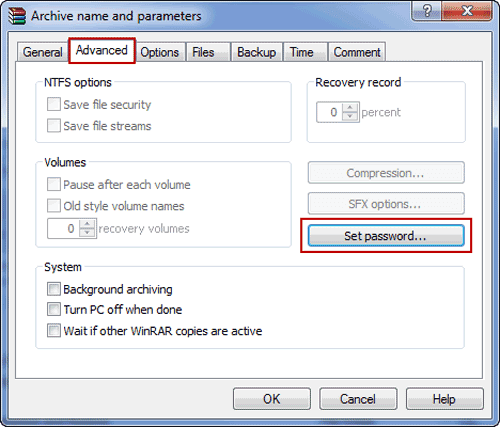
6. Turn to window top side and choose Advanced tab.

choose to set password for zip file

7. Click Set password and a new window Enter password appears.

8. Type a password in Enter password box, and Reenter password for verification.
Don’t check "Show password" and click OK.

set password for zip file

9. Click OK twice to finish zip file password protection.

successfully zip a file with a password

Choice 2: How to add password to zip file with 7-ZIP


7-zip is a common program that is used to compress file or folder as zip archive and add password to it. In the process of file encryption with 7-ZIP, the file you selected can be zipped at the same time.

 1. After 7-ZIP is installed in your computer, right click the file or folder you want to zip and add password to. Select 7-ZIP and click "Add to archive".

2. When "Add to archive" window appears, name the zip archive at the top box. Enter password and reenter it to confirm under "Encryption" option. Click OK at last.

Detailed introductions in: How to Encrypt a ZIP File with 7-ZIP

Related Articles: