April 2, 2014

Where to Get a Password Reset Disk for Windows 7/8

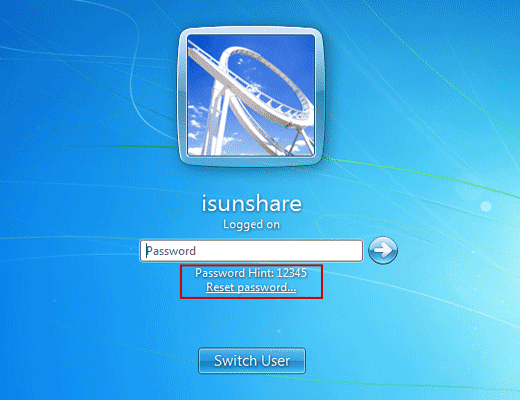
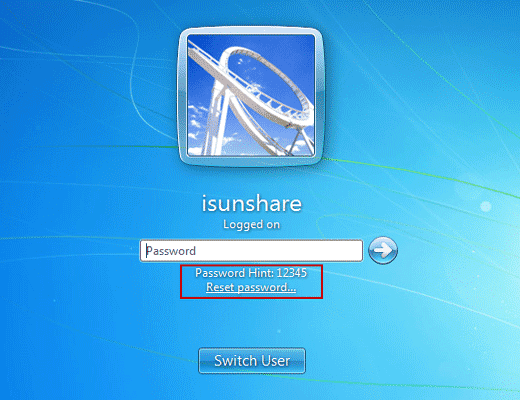
When we have typed incorrect password to try to login in to Windows 8/7 computer, a prompt usually suggests us to reset Windows password by click “Reset Password” button under password box. But if we have no password reset disk available, where to get one for Windows 8/7?

Generally, you could get Windows 8/7 password reset disk from two ways.
One is created when the computer is available. Turn to Control Panel – User Account. On the left side of window, click “Create a password reset disk” and insert bootable USB to burn password reset disk. The other is to use password recovery tool, Windows Password Genius.
  1. Get Windows 7/8 Password Reset Disk in Control Panel
  2. Burn Password Reset Disk with Windows Password Recovery Tool

1. Get Windows 7/8 Password Reset Disk in Control Panel


For Windows 7:
Open Control Panel from Start menu, and turn to User Accounts and Family Safety - User Accounts screen. Insert bootable USB drive and click "Create a password reset disk". Follow "Forgotten Password Wizard".
windows 7 password reset disk creation in control panel

For Windows 8:
Windows 8 Control Panel is different from Windows 7. Control Panel has to be viewed by "Small icons" or "Large icons". And then User Accounts could be found.

view windows 8 control panel by small icons

get windows 8 password reset disk in control panel


2. Burn Password Reset Disk with Windows Password Recovery Tool


Step 1: Install and run Windows Password Genius on another accessible Windows computer, Mac, or Android phone.
Step 2: Prepare bootable USB or CD/DVD-ROM to burn password reset disk.


When you see "Burning Successfully" message, Windows 8/7 password reset disk has been created. Besides, such password reset disk also works for Windows Vista/XP and Windows server 2012/2008/2003/2000.

Related Articles:

April 1, 2014

How to Make a Boot Disk for Windows 7

I want to reinstall Windows 7 but no installation disk. How do I get or make Windows 7 boot disk free by myself?

For Windows 7, you could create Windows USB installation disk and Windows CD/DVD disk with Finalbooster. Finalbooster is powerful install tool, which could create Windows installation disk with ISO image file.  And then you could boot computer from it and install Windows operational system on computer, such as Windows 8/7/Vista and Windows server 2012/2008.

So now create Windows 7 boot disk with Finalbooster in two ways, bootable USB drive and CD/DVD-ROM.
  1. Create Windows 7 Boot Disk with Bootable USB Drive
  2. Make a Boot Disk for Windows 7 with CD/DVD-ROM
Step 1: Get Finalbooster and install it on accessible computer.

Step 2: Run it after installation, you would see following in screen.
  • Select an ISO image file
  • Burn ISO image file to CD/DVD disc
  • Burn ISO image file to USB flash drive
 finalbooster for windows boot disk creation

Step 3: Click “Browse” button to import Windows 7 ISO image file.                           
And then prepare bootable USB flash drive or CD/DVD-ROM and insert it into computer.

Step 4: Burn Windows 7 ISO image file into USB flash drive or CD/DVD-ROM.

burn windows boot disk with usb or cd

1. Create Windows 7 boot disk with USB drive
After insert USB flash drive into computer, choose it from drop-down box of “Burn ISO image file to USB flash drive”. And then click “Burn to USB”.

2. Make a boot disk for Windows 7 with CD/DVD-ROM
After insert CD/DVD device into computer, select it from drop-down box of “Burn ISO image file to CD/DVD disc”. And then click “Burn to CD/DVD”.

Step 5: When the Progress bar becomes full, it means ISO image file has been successfully burned into USB drive or CD/DVD-ROM.

burn windows boot disk successfully with finalbooster

The method of making Windows installation disk or boot disk above applies to Windows 7/8/Vista/2008/2012. And the most important is that you could burn Windows boot disk with Finalbooster free and easily. So don’t worry about no Windows installation or boot disk.

March 31, 2014

How to Reset Windows 7 Password with or without USB Disk

USB flash drive is usually used to create password reset disk, burn Windows installation disc, Windows recovery drive, which could reset Windows 7 password. So USB disk usually appears in Windows password reset. In this passage, we will talk about Windows 7 password reset with or without USB disk.

Part 1: How to Reset Windows 7 Password with USB Disk


  • When you have USB disk with password reset disk, how to reset Windows 7 password?
  • When you have USB disk with installation disc, how to remove Windows 7 password?

Option 1: Reset Windows 7 Password with USB Password Reset Disk


Password reset disk is common boot disk for Windows password reset, applying to Windows 8.1/8/7/Vista/XP and Windows server 2012/2008/2003/2000. And it is created in Control Panel or with Windows password recovery tool, such as Windows Password Genius.

If it is created in Control Panel, just insert USB disk into your locked computer after you login Windows 7 failed. Click "Reset Password" on Windows 7 logon screen, and Windows forgotten password reset wizard appears. Follow it and go on to set a new password for current user account.


If it is created with Windows password recovery tool, such as Windows Password Genius, you have to insert USB disk into locked Windows 7 computer. And set computer boot from USB disk. When Windows Password Genius program runs in WinPE environment, select Windows 7 system and user account to “Reset Password”. This password recovery tool would remove forgotten Windows 7 user password. 

Option 2: Reset Windows 7 Password with USB installation disk


Installation disc is used to reinstall Windows 7 or repair Windows 7, in order to remove forgotten Windows 7 password. So make sure important data has been back up previously.

 
  1. Boot from Windows 7 DVD or USB Device.
    Insert Windows 7 USB installation disk into computer. And hold on pressing Del key.
  2. Wait for Windows 7 Installation Files to Load
  3. Wait for Windows 7 Setup to Finish Loading
  4. Choose Language and Other Preferences
  5. Click the Install Now Button.
  6. Wait for Windows 7 Setup to Begin
  7. Accept the Windows 7 License Terms
  8. Choose the Type of Windows 7 Installation to Complete
  9. Show the Windows 7 Advanced Drive Options
  10. Delete the Partition Windows is installed on
  11. Confirm the Partition Deletion
  12. Delete Other Operating System Related Partitions
  13. Confirm Additional Partition Deletions
  14. Choose a Physical Location to Install Windows 7 On
After it completes successfully, you will get Windows 7 clean install. Previous Windows 7 password has been removed. Now there has been no password for Windows 7 default administrator. So now you could login into Windows 7 computer without password.

Part 2: How to Reset Windows 7 Password without USB Disk


When you don’t have USB disk, CD disk is also available for Windows 7 password reset. Or create password reset disk with new bootable USB drive to reset Windows 7 password.

Option 1: Reset Windows 7 Password with system repair disc


  1. Plug the system repair disc in the CD/DVD drive of your locked Windows 7 computer. Restart the computer.
  2. A few seconds later, the screen displays Press any key to boot from CD or DVD. Press any key to boot the disc. If your PC still boots from the hard drive, you need to change the boot order in BIOS.
  3. Choose the Use recovery tools that can help fix problems starting Windows option. Click Next.
  4. On the next screen, you'll see various system recovery tools that can be used to repair your computer. Click on Command Prompt.
  5. In the Command Prompt window, type these commands one by one in order to replace the sethc.exe (Sticky Keys application) with the Command Prompt (cmd.exe).
    c:
    cd windows
    cd system32
    ren sethc.exe sethc.exe.bak
    copy cmd.exe sethc.exe
  6. Close the Command Prompt. Remove the system repair disc and restart your PC.
  7. Once you get to the Windows 7 login screen, hit the Shift key 5 times and it will open the Command Prompt window instead of the Sticky Keys application.
  8. Now to reset the password - just type the following command, replacing the username and password with the combination you want:
    reset user isunshare 123456
  9. Close the Command Prompt and you should be able to log into your PC using the new password.
  10. After getting into Windows 7, remember to rename the sethc.exe.bak back to sethc.exe.
  11. That's it – you have successfully reset your forgotten Windows 7 password.

Option 2: Create password reset disk with new bootable USB drive 


When there is no USB disk to reset Windows password, Windows Password Genius provides you another chance to create password reset disk, which could recover Windows 7 forgotten password and add new user account in locked Windows 7 computer.
  1. Prepare devices what are needed to create password reset disk with USB drive.
    Windows Password Genius, bootable USB flash drive, available computer.
  2. Install Windows Password Genius on available computer and insert bootable USB drive into computer. 
  3. Choose inserted USB drive and click "Begin burning" to burn password reset disk into USB drive. Exit it after successfully password reset disk creation.
  4. Plug USB password reset disk into your locked Win 7 computer, and boot computer from USB disk, you could remove Windows 7 password on Windows Password Genius program interface. After that, exit USB drive and reboot Win 7 computer.

Related Articles:

March 17, 2014

Tips or Tricks for Windows Server 2012 Usage


Windows Server 2012 is new Windows server operational system, which is designed based on Windows 8. So it is different from previous server operating system. If you operate Windows server 2012 like before, that would be difficult. Therefore, now this passage gives some tips and tricks to use Windows server 2012 effectively.

Tip 1: How to find Windows Server 2012 traditional “Start” Menu


Windows server 2012 also removes “Start” menu from taskbar. Maybe there are so many server computer users unhappy about it, but this is truth. Now let’s see how we can find traditional “Start” menu.

windows server 2012 start menu

Actually, “Start” menu has not disappeared. It is just removed to the left bottom side of traditional desktop. But users couldn’t see it only if move mouse there. Click it, and experience new functions setting in Start menu, including Server Manager, Task Management, Computer etc common applications. Double-click the application picture, and it opens. If click it, we can delete or remove it. If we want to turn back to desktop, just click “Desktop”.

windows server 2012 start menu

Or move the mouse to the right bottom side of window, and you would see “Start” menu like in Windows 8, click it and Start screen appears.

Tip 2: How to find software or tools in Windows server 2012


In Windows server 2012 start screen, what we can see is not what we think of. There are so many tools and software that we don’t know where they are. In fact, it is simple. We just need to right click in the blank section of Windows start screen. And then there would be a option “All Apps” pop up in the bottom side. Click it and we could see the tools page.

In the tools page, we can see effective tools in Windows server 2012. If we use one application usually, we can right click it and add it to desktop, taskbar or login with administrator etc.

Tip 3: How to shut down Windows server 2012 computer fast


Windows server 2012 shutdown problem also troubles computer users because of no “Start” menu on traditional desktop. So sometimes we could only shut down server computer with Task Manager. It is helpless. Now this passage summarizes four ways to shut down Windows server 2012.

1. Press Windows + I or move mouse to the right bottom side of desktop, Menu and Toolbars. Click “Power” and "Shut down" Windows server 2012.


2. Press Alt + F4 on traditional desktop to open application close window. In traditional desktop, Alt + F4 is used to close Metro applications.

3. Press “Ctrl + Alt + Del”, Windows shutdown options would appear in the right bottom corner of desktop.

4. Press Windows + R to run command “shutdown.exe -s -t 00”.
Run command prompt with administrator, type in “powercfg/H on”. “Power” option is open. Click “Must type password when wake up” in the left side, and tick the “Fast Boot”. And you could start and shut down Windows server computer fast.

Refer to: How to enable fast boot and shut down Windows server 2012

Tip 4: How to adjust performance to optimize programs


Open Server Manager – Local Server, click computer name and System Properties window pops up. Select Advanced – Performance, and choose “Turn on DEP for essential Windows programs and services only” in Data Execution Prevention. Select “Adjust to optimize performance” – “Programs”. And then click “Change Button” in virtual memory, don’t tick “Automatic management of all drives paging file size”. Choose system drive, select “No page file” and click “Settings” button so as to delete virtual memory files in system volume.
adjust windows server 2012 to optimize performance

Tip 5: How to disable Enhanced IE security settings


Open Server Manager – Local Server – Enhanced IE security settings, and then change “Enabled” to “Disabled”.

Tip 6: How to not boot Server Manager when Windows logon


Open Server Manager, and click Manage– Server Management Properties, and choose “Don't automatically start server manager when logon”.

don't start server manager when windows server 2012 logon

Tip 7: How to set input method switch shortcut


If you are Chinese people, please pay attention to that English and Chinese input method switch shortcut is not the same as previous Windows operational system. Now open Control Panel – Language – Change Language Hotkey, set their switch shortcut as “Ctrl +Shift”.

Related articles:


March 13, 2014

Upgrade to Which Windows System after without Windows XP


With the Microsoft announcement about stopping support Windows XP since April 8 in 2014, Windows XP users have to make hard decisions. Go on running Windows XP, turn to use Linux or upgrade to Windows new operational system? According to the survey, there are still many people choose to use Windows XP in later few years. The problems Windows XP users need to mention have introduced in where to go if without support for Windows XP.

For computer users who have been accustomed to using Windows XP in previous few years, suddenly turn to run Linux instead of Windows XP is hard to adapt. Believe more and more people would choose to upgrade Windows XP to new operational system, such as Windows 7 and Windows 8, except those persons who are obsessed with Windows XP.


Now, all PC computers and laptops can be upgraded to Windows 7/8. So now let's discuss the problems necessary to be thought about during choosing which Windows system instead of Windows XP.

First, consider computer hardware configurations.


Does Windows XP computer hardware configuration satisfy the conditions to upgrade to Windows 7 or Windows 8?

That's no doubt that Windows 7 and newer Windows systems need more advanced hardware configuration compared to Windows XP. If you want to upgrade Windows operational system to Windows 7, computer hardware configuration has to be mainstream configuration gotten after 2006.

Detailed configurations:
  • CPU: 1GHz or above; double kernel CPU;
  • Memory: 1G or above (2G and above better)
  • Disk: 16 G and above, suggest leave 100G and above and disk utilization had better not be higher than 75%.
  • Graphic Card: WDDM driver available for DirectX 9
  • Driver: Many OEM has not prepared drivers for new operating system in old device. Old device would affect use and stability of new Windows operating systems.

Windows 8/8.1 is not designed to run in Windows XP old computer. So if you prepare to upgrade to Windows 8, suggest run Windows 8 Upgrade Assistant to check whether old computer has achieve the lowest demand.

Second, consider choosing Windows system according to ease-of-use


After making sure computer hardware configuration, we should consider selecting which operating system according to its ease-of-use. On similarity, Windows 7 is more similar to Windows XP on interface. It would be easy to know Windows 7 well more quickly than Windows 8. But it would take more time and disk to install nearly about 100 patches.


And Windows 8/8.1, there have been so many changes on interface. Computer users have to spend more time to be familiar with it. Compared with Windows 7, Windows 8 doesn’t need to install many patches and Windows system boots more quickly. 

Third, choose 32-bit or 64-bit Windows operating system

 
Now 64-bit operational system has become the trend, because most of 32-bit programs could run successfully in 64-bit operating systems, but 64-bit programs are hardly to run in 32-bit Windows systems. At the same time, 64-bit Windows system would occupy more memory and disk. So according to computer memory and disk, choose appropriate Windows operational system. Try hard to choose 64-bit operating system.

At last, let's see how new Windows operational system would influence our computers after Windows 7 or Windows 8 installation.

Whether operating system would influence the programs running in previous Windows system?

This is the problem we always worry about after Windows system upgrade. CD-ROM or USB flash drive is needed to fully install Windows 7/8/8.1 in Windows XP old computer. Therefore, all the users' files and programs previously installed on this computer could not be moved automatically. Computer users have to reinstall all programs new version manually applying to Windows 7/8, and copy user files to new operating system.

Tips: How to move files from old operational system to new one

Related articles: