Showing posts with label windows 7 password reset. Show all posts

August 14, 2018

2 Best Methods to Reset Microsoft Windows 7 Password with Ease


Over the years, Microsoft and the Windows operating system has continued to dominate the world of computer technology with its amazing products, and Microsoft Windows 7 is one of the operating systems that have proven to be very reliable in the world of computing. However, one problem has continued to linger over time, and that is forgetting your Windows 7 password.


It can get really frustrating when you want to use your computer and for some reason cannot remember the password, the ultimate solution may be to reinstall the software, but then again the thought of losing all your files on the computer is one thing you do not want to go through. In light of this, there are ways to carry out a Microsoft Windows 7 password reset without hassles, and in this post we will discuss two of the various ways.

· 

Method 1: iSunshare Windows 7 Password Genius

This software is a very easy way to reset your Windows 7 password in case you forget it. With the software, you have the ability to have access to your system easily, regardless of what version of windows 7 you use.

The iSunshare Windows 7 Password Genius software can perform the following functions with ease:

Ø  Create and add new accounts to your Windows 7 system without having to login, thereby creating a way to go through the control panel to reset the password.
Ø  Remove the Windows 7 password without losing any data from the computer.
Ø  It can help you create a Windows 7 password recovery disk, and will work perfectly with a USB flash, CD/DVD, External Hard drive, etc.
Ø  It supports different hard disks including: SCSI, SATA, and IDE.

windows 7 password reset


·      Method 2: Microsoft Windows 7 Password Reset with Install CD Disk

Peradventure you have forgotten your password, and prior to this, you did not create a Windows 7 password reset disk, then there is another way to reset the password. All you need for this is the Windows 7 install CD disk.


               Ø  How to Do it
o   Restart your computer, depending on your computer, select the boot device and select the option to boot from Windows 7 install disk.
o   After loading the setup screen, click on “Repair your computer”
o   Click on “Command Prompt” from the available recovery options, and when the command prompt window opens, enter the following (press enter after each line entry):
c:
cd windows (press enter)
cd system32 (press enter)
ren sethc.exe sethc.exe.bak (press enter)
copy cmd.exe sethc.exe (press enter)
o   After entering the commands and pressing enter after every line, the system should perform a reboot (remove the disc)
o   When the log in screen comes up, press the “Shift” key 5 times to bring up the command prompt box, and enter the following command
Net user user_name new_ password
When it is successful, close the command prompt box and log in with your new password.

All above are the most effective methods for you to reset Microsoft Windows 7 password. You can have a test and share more tips with us. If your laptop is in Windows 10 system, you can refer to the following articles.

Related articles:


March 31, 2014

How to Reset Windows 7 Password with or without USB Disk

USB flash drive is usually used to create password reset disk, burn Windows installation disc, Windows recovery drive, which could reset Windows 7 password. So USB disk usually appears in Windows password reset. In this passage, we will talk about Windows 7 password reset with or without USB disk.

Part 1: How to Reset Windows 7 Password with USB Disk


  • When you have USB disk with password reset disk, how to reset Windows 7 password?
  • When you have USB disk with installation disc, how to remove Windows 7 password?

Option 1: Reset Windows 7 Password with USB Password Reset Disk


Password reset disk is common boot disk for Windows password reset, applying to Windows 8.1/8/7/Vista/XP and Windows server 2012/2008/2003/2000. And it is created in Control Panel or with Windows password recovery tool, such as Windows Password Genius.

If it is created in Control Panel, just insert USB disk into your locked computer after you login Windows 7 failed. Click "Reset Password" on Windows 7 logon screen, and Windows forgotten password reset wizard appears. Follow it and go on to set a new password for current user account.


If it is created with Windows password recovery tool, such as Windows Password Genius, you have to insert USB disk into locked Windows 7 computer. And set computer boot from USB disk. When Windows Password Genius program runs in WinPE environment, select Windows 7 system and user account to “Reset Password”. This password recovery tool would remove forgotten Windows 7 user password. 

Option 2: Reset Windows 7 Password with USB installation disk


Installation disc is used to reinstall Windows 7 or repair Windows 7, in order to remove forgotten Windows 7 password. So make sure important data has been back up previously.

 
  1. Boot from Windows 7 DVD or USB Device.
    Insert Windows 7 USB installation disk into computer. And hold on pressing Del key.
  2. Wait for Windows 7 Installation Files to Load
  3. Wait for Windows 7 Setup to Finish Loading
  4. Choose Language and Other Preferences
  5. Click the Install Now Button.
  6. Wait for Windows 7 Setup to Begin
  7. Accept the Windows 7 License Terms
  8. Choose the Type of Windows 7 Installation to Complete
  9. Show the Windows 7 Advanced Drive Options
  10. Delete the Partition Windows is installed on
  11. Confirm the Partition Deletion
  12. Delete Other Operating System Related Partitions
  13. Confirm Additional Partition Deletions
  14. Choose a Physical Location to Install Windows 7 On
After it completes successfully, you will get Windows 7 clean install. Previous Windows 7 password has been removed. Now there has been no password for Windows 7 default administrator. So now you could login into Windows 7 computer without password.

Part 2: How to Reset Windows 7 Password without USB Disk


When you don’t have USB disk, CD disk is also available for Windows 7 password reset. Or create password reset disk with new bootable USB drive to reset Windows 7 password.

Option 1: Reset Windows 7 Password with system repair disc


  1. Plug the system repair disc in the CD/DVD drive of your locked Windows 7 computer. Restart the computer.
  2. A few seconds later, the screen displays Press any key to boot from CD or DVD. Press any key to boot the disc. If your PC still boots from the hard drive, you need to change the boot order in BIOS.
  3. Choose the Use recovery tools that can help fix problems starting Windows option. Click Next.
  4. On the next screen, you'll see various system recovery tools that can be used to repair your computer. Click on Command Prompt.
  5. In the Command Prompt window, type these commands one by one in order to replace the sethc.exe (Sticky Keys application) with the Command Prompt (cmd.exe).
    c:
    cd windows
    cd system32
    ren sethc.exe sethc.exe.bak
    copy cmd.exe sethc.exe
  6. Close the Command Prompt. Remove the system repair disc and restart your PC.
  7. Once you get to the Windows 7 login screen, hit the Shift key 5 times and it will open the Command Prompt window instead of the Sticky Keys application.
  8. Now to reset the password - just type the following command, replacing the username and password with the combination you want:
    reset user isunshare 123456
  9. Close the Command Prompt and you should be able to log into your PC using the new password.
  10. After getting into Windows 7, remember to rename the sethc.exe.bak back to sethc.exe.
  11. That's it – you have successfully reset your forgotten Windows 7 password.

Option 2: Create password reset disk with new bootable USB drive 


When there is no USB disk to reset Windows password, Windows Password Genius provides you another chance to create password reset disk, which could recover Windows 7 forgotten password and add new user account in locked Windows 7 computer.
  1. Prepare devices what are needed to create password reset disk with USB drive.
    Windows Password Genius, bootable USB flash drive, available computer.
  2. Install Windows Password Genius on available computer and insert bootable USB drive into computer. 
  3. Choose inserted USB drive and click "Begin burning" to burn password reset disk into USB drive. Exit it after successfully password reset disk creation.
  4. Plug USB password reset disk into your locked Win 7 computer, and boot computer from USB disk, you could remove Windows 7 password on Windows Password Genius program interface. After that, exit USB drive and reboot Win 7 computer.

Related Articles:

September 9, 2013

How to Reset Admin Password on PC Windows 7


Lost Windows 7 admin password on PC? Don’t be afraid of. Now this passage is intended to solve this problem. How to reset an admin password on PC Windows 7?

  • Solution 1: Reset Windows 7 Admin Password with Administrator
  • Solution 2: Reset Admin Password on Windows 7 with Disk

Solution 1: Reset Windows 7 Admin Password with another Administrator


As we all know, there are three kinds of account for Windows client, guest, standard account and administrator. Administrator has the highest authority on computer and Windows operation. And it is forbidden default and without password. So generally we create admin account to use computer more conveniently and forget there is still administrator we never use. At this time, we can log in to Windows 7 with administrator. 

Enter Control Panel - User Accounts and Family Safety - User Accounts, choose the account you want to change or remove its password. Click “Change your password”, type “New password” and “Confirm new password”. Or click “Remove your password” and “Remove Password” to make sure.

Solution 2: Reset Admin Password on Windows 7 with Disk


1. Reset Admin Password with Windows 7 Password Reset Disk

The password reset disk can be created when you can access Windows 7 or locked out of Windows 7. 

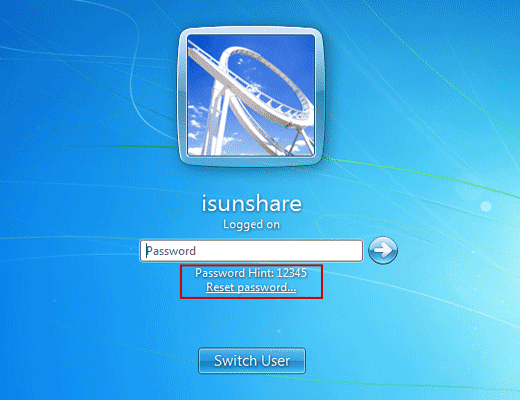
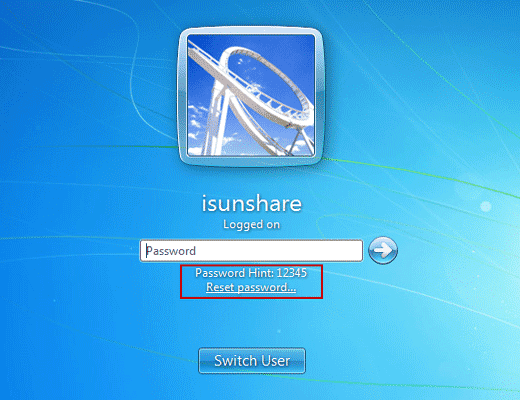
If the password reset disk has been created when you can access Windows 7, just when you are prepare to login Windows 7, type incorrect password. Click “Reset Password” to go on Windows 7 password reset.

If your password reset disk is burned by Windows Password Genius, insert password reset disk into locked Windows 7 PC. Set PC boot from password reset disk so as to run Windows Password Genius program to reset Windows 7 password. In WinPE environment, you can see the program lists all the accounts for Windows 7. Select admin account and click “Reset Password”.

2. Reset Windows Admin Password with Bootable Disk

The bootable disk can be Windows 7 installation CD, or bootable disk created by other software, such as Offline NT password registry editor.

2.1 Reset Windows 7 Admin Password with Installation CD

2.2 Reset Windows 7 Password with Offline NT password registry editor
<1> Get Offline NT Password Registry Editor and use it to create a live cd or bootable USB disk.
<2> Set your PC boot with the USB
<3> Follow the Windows 7 password reset instruction to finish the operation when password reset program starts.

August 15, 2013

Ways to Boot and Use HP Laptop Successfully if Lost Windows 7 Password


If we lost HP laptop Windows 7 password and locked out of Windows, is there any way to boot and use HP laptop normally? 

Way 1. If you just lost one of the accounts password for Windows 7, boot and use HP laptop successfully is so easy.
After you type incorrect password to log in, the window will prompt you that Switch User. Click Switch User and login with another account. 

And then Windows 7 can be boot and used normally.


Way 2. If you lost the only administrator account password for Windows 7, reset Windows 7 password with password hint or reset disk first. Successfully reset lost Windows 7 password, boot and use HP laptop is a natural thing.
When the Windows remind you the user name or password is incorrect, click OK to back to login window. 


There are two choices for you to reset Windows 7 password. One is thinking of lost login password through password hint; the other is click “Reset password” to reset Windows 7 forgotten password with rest disk

How to boot Windows 7 with password reset disk? Follow the operational wizard to do is no problem. 

Way 3. If you have tried the above two easy ways, boot and use HP problem still couldn’t be solved. Just try to find available Windows 7 password recovery software to reset HP laptop password. Search "windows 7 password recovery software", it will  return to tens of millions of results. Choose effective one software from them is nuisance. If you change the search  with "windows 7 password genius", you don't have to make a choice from so many results. Maybe you can think of Ophcrack, Windows 7 Password Genius. If you are interested in them, you can refer to the introduction and user guide of them.