May 19, 2014

Microsoft Surface Pro or Pro 2 Owner and User Password Reset

How to reset Microsoft user and owner password on Microsoft Surface Pro or Pro 2? Please see this passage to learn how to do when you forgot Microsoft Surface user or owner password.

Because of privileges difference between user and owner, we discuss reset user and owner password dividedly on Surface Pro or Pro 2.

Section 1: How to Reset Microsoft User Password


If you have only forgotten user password, there would be more many ways available for Microsoft user password reset. For example, reset Microsoft user password with administrator password or PIN code.

On Windows logon screen, after you try to type incorrect password to login Microsoft Surface pro, click arrow on the left side of user avatar. And select other user with admin privileges to login. Or click "Sign-in options" and select PIN code, type it and press Enter.

And then we can reset Windows 8/8.1 pro user password with following:

Way 1: Turn to Control Panel - User Accounts - Manager another account, select user account, and set a new password for it.

Way 2: Press Windows + X to run Command Prompt, and type net user <user name> <user password>. And press Enter.

Way 3: Press Windows + R composite keys to open Run dialog, type lusrmgr.msc and press Enter. Open Local Users and Groups on Windows 8.1 Pro. Select "Users" in the left pane, and right click the local user account that you want to change password or reset password for, and click Set Password and then click "Proceed". Type in a new password twice to change Windows 8.1 logon password. Or leave all password fields empty and click "OK".

Way 4: Or press Shift + F8 to access Windows 8 in Safe Mode with admin account, and then reset Windows 8 password with Command Prompt.

Section 2: How to Reset Microsoft Owner Password


Way 1: Reset Microsoft Owner Password with Microsoft Account


Microsoft account is a special logon way for Windows 8. If you use Microsoft account as your Windows 8.1 credentials, you could access Windows 8 with Microsoft account online. 

Directly go to the Microsoft account settings online from another computer. If you can remember Microsoft password, sign into your Microsoft Account Summary page and then click Change password. Type in your current password and type in a new password twice, and click "Save".

Way 2: Reset Microsoft Owner Password with Reset Disk


If password reset disk has been created before, you would find "Reset Password" button on Windows owner logon screen. Click it and insert password reset disk into computer, you could follow "Password Reset Wizard" to do step by step.

If password reset disk has not been created before, you couldn’t reset Windows 8 password with reset disk directly. But you can create one with Windows Password Genius Advanced on another available computer.

After password reset disk is successfully burned into bootable USB drive, insert it into locked Surface pro and set Surface boot from USB device. Run Windows Password Genius Advanced program in locked Surface pro, select administrator and click "Reset Password".

Tips: How to Reset Surface Password with Windows Password Genius Advanced

Notes:
Windows Password Genius Advanced not only resets Windows 8 password for Surface or other laptop, but also works for server computer password reset.

Related Articles:

May 13, 2014

Windows 8 Forgot Administrator Password on Microsoft Surface Pro

Microsoft Surface Pro administrator password forgot, how to reset Windows 8 password?

If it is local administrator password, you can ask Surface administrator for help. Or password hint remind you of forgotten password. Or reset Surface Pro laptop to factory settings. Or login Windows 8 with Microsoft account and reset forgotten administrator password online.

If it is domain administrator password, contact system administrator and then reset Windows password.

If it is just your personal PC and Surface Pro is not connected to a domain, and no Microsoft account, even you don’t want to factory reset Surface Pro, how should you do?

Effective password reset disk should be your first choice. If it has not been created when Surface Pro laptop is accessible, Windows Password Genius Advanced can help instead create one for Windows password reset.

1. Prepare Windows password reset disk creation tool.


Windows Password Genius Advanced, available computer and bootable USB drive.

2. Create Windows password reset disk. 

  • Run Windows Password Genius on available computer.
  • Insert bootable USB drive into computer.
  • Click Begin burning to burn password reset disk into USB drive.

3. Reset Surface Pro Windows 8 Administrator Password. 

  • Boot Surface Pro from password reset disk successfully.
    Tips: How to Boot Surface from USB Device
  • Select Windows system and administrator.
  • Click Reset Password to remove forgotten Windows 8 password.

Related Articles:

May 8, 2014

Remove Administrator Password with HBCD in Windows 7 Starter

I get a Dell laptop with Windows 7 Starter, but no password gotten to login into it. I wish to get full privileges to do everything on this laptop, so how to remove unknown administrator password in Windows 7?

Probably, you know CMD or other ways that could reset Windows 7 administrator password when you can access to computer.  But now any user password for Windows 7 login is not known, it would become different.  So take free and powerful Hiren’s BootCD to help you.

Hiren’s BootCD is a powerful tool, which looks small but contains a number of diagnostic programs such as data recovery tools, MBR tools, BIOS tools etc. And there is Password/Key Tools program that could reset administrator password on generic brand laptops or bypass Windows login password.

Follow the steps to remove Windows 7 administrator password with HBCD:

1. Download Hiren’s BootCD from here: http://www.hirensbootcd.org/download/

2. Burn it into bootable CD ROM.
Burn media is chosen according to your PC, laptop or notebook situations.

3. Insert Hiren’s BootCD into your Windows 7 computer. And set computer boot from it.
Tips:

You would see these programs for Windows password reset or remove. 
  • Offline NT/2000/XP/Vista/Vista/7 Password Changer: Windows Password Reset 
  • Kon-Boot: Windows (any/blank password) and Linux (kon-usr) Login without a password
 
When you click “More” on Hiren’s BootCD screen, you would see more other programs contained in it.

Now we intend to reset Windows 7 password, so choose Offline NT/2000/XP/Vista/Vista/7 Password Changer or Kon-Boot, and press Enter.

Reset Windows 7 Administrator Password with Offline Password Changer


Select Offline Password Changer and press Enter again to boot password recovery program. There are several steps to go through if you prepare to reset Windows password with it.

  • Step 1: Disk selection with optional loading of disk drivers
  • Step 2: PATH select, where the Windows systems files stored
  • Step 3: File select, what parts of registry we need
  • Step 4: Then finally the password change or registry edit itself
    If changes were made, write them back to disk.

Step 1:  Select disk where the Windows installation is - Select [1]

Step 2: Select PATH and registry files - Press Enter and Select [1]

Step 3: Select “Password reset” and press Enter
  

Step 4: Select “Edit user data and passwords”

Step 5: Type administrator name and press Enter
 

Step 6: Select “Clear (blank) user password”.
Administrator password will be successfully cleared to be blank. 

Remove Windows 7 Logon Password with Kon-Boot 


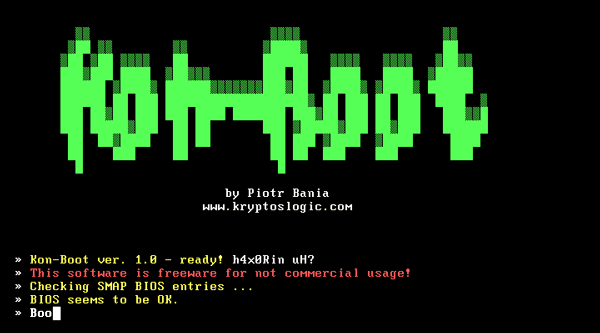
Kon-Boot is one tool which could boot from BIOS and change contents of Windows kernel and let you login Windows system without password temporarily. And when you restart computer next time, original password will be asked again to access Windows.

1. Select Kon-Boot and press Enter to run it.
You would see a white screen will pop up.

2. Press any key and a black screen will popup showing the process of hooking BIOS functions.

After a few more seconds the computer will start to boot normally.

3. When Windows logon screen appears, simply type anything is the password box, or leave the password field blank.

It is easy and good way to bypass Windows password to logon. But it is known that not every computer’s BIOS will allow Kon-Boot to work, but the majority will be fine if the operating system is compatible.

Tips:
What it can work for: 32 bit version of Windows 7/XP/Vista and Windows server 2000/2003/2008.
What free Kon-Boot couldn’t work for?
  1. It doesn’t work with 64-bit Windows.
  2. It is not compatible with any versions of Windows 8.
These two password recovery tools in HBCD surely could solve could solve Windows 7 logon problem. But it maybe look a little more difficult for computer novice. Every step to reset Windows password is described with only words in program, so we need to read them carefully and then make a decision. Compared to them, Windows Password Genius provides more user-friendly interface and fewer steps to reset all of Windows system password for all the generic computers.

Related Articles: 

May 7, 2014

Restore Device to Factory Settings on Samsung Galaxy Ace

When we encounter problems on Samsung Galaxy Ace, reset it back to factory default settings could be helpful. But we should pay attention to that such factory reset would make personal data and settings lost on Samsung Galaxy phone. If you are ready, follow one of the methods below to restore Samsung Galaxy device to factory settings.
  • Method 1: Factory Reset Samsung Galaxy in Settings Menu
  • Method 2: Hard Reset Samsung Galaxy Phone with Composite Hardware Keys
  • Method 3: Restore Samsung Galaxy Phone to Default Settings with Dial Pad

Method 1: Factory Reset Samsung Galaxy in Settings Menu 


If you are still could turn on Samsung Galaxy Ace and enter it successfully, follow this method.
  1. Turn on your Samsung Galaxy phone. Tap “Menu” from the home screen.
  2. Tap on “Settings”.
  3. Select “Back up and reset”.
    Samsung Galaxy Ace will automatically backup and restore all your data. If you do not want your personal data backed up and restored following the reset, tap on each corresponding to clear the check box.
  4. Tap on “Factory data reset”.
  5. Tap on “Reset device”.
    If you have the screen lock feature enabled on your device, you will be prompted to enter your password or PIN code before you can continue.
  6. Select “Delete all”. Samsung phone will then reset by erasing all data and rebooting.

Method 2: Hard Reset Samsung Galaxy Phone with Composite Hardware Keys


When your Galaxy Ace keeps freezing, and you’ve forgotten the security codes or it just doesn’t work, take it back to factory settings. This will wipe everything on your phone, so if you’re not locked out of phone, please try backing it up first. This won’t wipe your SIM. Follow the steps to do:
  1. Switch the Samsung phone off. If it's frozen, remove and reinstall the battery to turn it off.
  2. When the phone is still off, press and hold the Home, Volume Up and Power buttons all together until you see the Android developer menu appear.
  3. Use the Volume Down key to scroll to wipe data/factory reset and then press the Home key to select it.
  4. Use the Volume Down key to scroll to Yes - delete all user data and then press the Home key to select it.
  5. Use Volume Down to highlight reboot system now and the press the Home key to select it.
The phone will take few minutes until complete rebooting to its factory settings. Don’t be panic just wait. If there is no response in 10 minutes just release your battery and put it back again and repeat from first step.

Method 3: Restore Samsung Galaxy Phone to Default Settings with Dial Pad

  1. Open the dial pad on your Samsung Galaxy Ace.
  2. Enter *2767*3855# and dial. Your Samsung Galaxy phone device will then reset itself and wipe all your personal information and settings.

Related Articles:

May 4, 2014

How to Setup Proxy Servers with IP Address for Blocked Websites

When we couldn’t access some websites sometimes, proxy is an effective way for us to enter blocked websites. There are two kinds of proxies. First, there are web proxies which have an interactive interface. Second, the proxy servers work on the basis of IP addresses and port numbers.  

If you wish to visit your blocked website using a web proxy, you don’t need to setup. However, if you wish to use a proxy server, you must configure your browser to use it. Follow the instructions given below to setup this type of proxy in usual browser, Internet Explorer, Google Chrome and Mozilla Firefox.

For Google Chrome and Internet Explorer Users:


Google Chrome uses the same network settings as Internet Explorer. Therefore, in order to configure Google Chrome to use a proxy server, we have to configure Internet Explorer. We can configure a proxy server in Internet Explorer by following the instructions given below:
  1. Start Internet Explorer.
  2. Click on Tools, Internet Options.
  3. Click on Connections Tab, select your Network Connection and click on Settings.
  4. Check on Use a Proxy Server for this Connection.
  5. In the Address field, add the IP Address of your Proxy server. In the Port field, enter the Port Number.
  6. Click on OK and OK again.


For Mozilla Firefox Users:


Mozilla Firefox users can configure their browser to use a proxy by following the instructions given below:
  1. Start Mozilla Firefox.
  2. Click on Tools, Options.
  3. Click on Advanced Tab.
  4. Click on Network tab.
  5. Click on Settings.
  6. Encircle Manual proxy configuration.
  7. Enter the IP Address and Port Number at the appropriate place. In most cases, it will be a HTTP Proxy.  

After you have successfully configured your browser to use the proxy server, you will be able to access blocked websites whenever you browse the internet with your browser.