May 13, 2016

How to Extract Encrypted ZIP/WinZip/7ZIP File without Password

As is known, when we have a zip/winzip/7zip file, no matter it is not encrypted or protected with password we know, we can open the zip archive, view files in it, or extract it to a folder.

However, if the zip file is protected with unknown password, no matter which option we have chosen to encrypt zip file in WinRAR, we cannot view, open even extract encrypted zip file.

So the best way is to keep encrypted zip file password in safe place. Once we need it, we could easily find out to use. But if you lost or forgot zip password unfortunately, whether you cannot extract encrypted zip file?

Surely it is not. Now the utilities used usually, such as NSIS and iSunshare ZIP Password Genius, could help users to extract encrypted ZIP/WinZip/7ZIP File without password.
  • NSIS: free and directly extract zip file without password
  • iSunshare ZIP Password Genius: free trial and find password to extract encrypted zip file

Let’s see how they help to extract encrypted .zip file in following article.

Option 1: Take NSIS to Extract Encrypted ZIP/WinZip/7ZIP File


Step 1: Download, install and run NSIS on your computer.

Step 2: Choose Installer based on ZIP on NSIS to open Zip2Exe window.

choose installer based on zip option

Step 3: Click Open button to select encrypted .zip file in Zip2Exe window.

choose encrypted zip file to generate as exe file

Step 4: Confirm the location of output exe file and click on Generate button.

Step 5: Double-click exe file you get after generation. And install it to destination folder.

install exe file to extract encrypted zip file without password

With the installation complete, you have extracted encrypted zip file to destination folder.

successfully extract encrypted zip file with NSIS

But sometimes I find it doesn’t work successfully. And I don’t know the reasons. At this moment, I just try other utility, iSunshare ZIP Password Genius.

Option 2: Take iSunshare Software to Extract Encrypted ZIP/WinZip/7ZIP File


It is heard that iSunshare ZIP Password Genius provides two editions to work on different situations. So it would be more optional than NSIS. If you have one computer, you can choose Standard edition. While you have more than one computer in LAN, you could get Professional edition to improve speed on extracting encrypted zip file.

So now I choose iSunshare ZIP Password Genius Professional without a second thought when I have two computers in Local Area Network.

Tip: About how to use ZIP Password Genius Standard to extract your zip file, you can follow its user guide to recover zip password on your computer at first.

Step 1: Download Professional trial version to install, and run to have a try.

When you find trial version cannot recover your encrypted zip file password, it is just because your zip file password is longer than 3 characters. In order to successfully extract your archive, you should get its full version and go on.

Step 2: Prepare client program iSunshare ZIP Peer to run on other computers in LAN.

create isunshare zip peer installation exe file
  • First, click Make Peer button to create installation file of iSunshare ZIP Peer.
  • Second, move the exe file to other accessible computers in LAN.
  • Third, install and run iSunshare ZIP Peer for zip password recovery.
install and run isunshare zip peer in lan

Your computer running iSunshare ZIP Password Genius Professional have automatically launched iSunshare ZIP Peer. So you don’t need to install and run iSunshare ZIP Peer again on your PC.

Step 3: Add encrypted zip file to ZIP Password Genius Professional.

Just tap on Open button, you could browse computer and select encrypted zip file you want to extract. Then you could see it imported into Encrypted File box of iSunshare ZIP Password Genius Professional.

import encrypted zip file into main program

Step 4: Specify probable zip password range and length in order to improve speed.

Under Range Options and Length, you could specify probable characters zip password includes and password length. The narrower the range is and shorter password length is, the less time you would spend.

specify zip password recovery range

Step 5: Start to recover zip password with main and client programs.

Click Start button on main program. Instantly client program iSunshare ZIP Peer would begin to work in LAN. All of them work together to recover zip password for imported encrypted zip file.

successfully recover encrypted zip file password

Step 6: Extract encrypted zip file with password you found.

After you find zip password with ZIP Password Genius, you can extract your encrypted zip file now as usual. Copy password and extract encrypted zip file in WinRAR or save zip password in safe place.

extract encrypted zip file with found password

Related Articles:

April 28, 2016

RAR Password Remover - Easily Remove Encrypted RAR File Password

WinRAR does not give users the option to change or remove a password once one has already been applied to a RAR archive. The user must create a new RAR archive without a password. But the precondition is that users have the password to extract encrypted RAR file. Otherwise, they would not create new RAR archive with the same files saved in encrypted RAR file.

Now this article would intend to introduce how to remove encrypted RAR file password with RAR password remover after RAR password forgot or lost.

Step 1: Prepare RAR password remover tool.


One of the RAR password remover tools I have ever used is RAR Password Genius. It helps to recover forgotten RAR password safely and effectively with a computer or in Local Area Network. If you have more than one available computer, you can select its Professional edition for faster RAR password recovery in LAN. If not, choose its Standard edition please to recover RAR password with four powerful password attack types.

Install and run RAR Password Genius Professional now on computer, because Professional edition also works on one computer to recover RAR password. This feature is the same as Standard edition.

choose rar password genius professional

Step 2: Prepare RAR password recovery client program.


With Professional main program, it would be easy for everyone to create client programs to run on other computers in the LAN.

First, click Make Peer button to create installation file of client program iSunshare RAR Peer.

create installation file of iSunshare RAR Peer

Second, install iSunshare RAR Peer on all other computers in LAN with its installation exe file.

install iSunshare RAR Peer in LAN

Third, run iSunshare RAR Peer after complete installation.

run iSunshare RAR Peer in LAN

Step 3: Add encrypted RAR file and make settings for probable password range/length.


1. Click on Open button on main program to browse and select encrypted RAR file you want to recover password. Then it would appear in Encrypted File box.

2. Under Range Options and Length, you can check the probable characters the encrypted RAR file password includes, and minimal/maximal password length to shorten RAR password recovery time.

import encrypted RAR file for password recovery

Step 4: Recover encrypted RAR file password with RAR Password Genius Professional.


After all above have been done, it is time for you to click Start button to make RAR Password Genius Professional and its client programs begin to work on password recovery.

start encrypted rar file password recovery

  1. On main program, you can view the recovery speed and how many client programs join in password recovery.
  2. On client program, you can see whether it is work and how fast it is running to recover RAR password.
recover encrypted rar file password with client program

The more computer CPUs you use, the faster recovery speed you will enjoy. Generally about few seconds later, you would see RAR password popping up in new dialog.

successfully recover encrypted rar file password

Step 5: Extract encrypted RAR file with recovered password.


1. Copy recovered password, and click Open button to open encrypted RAR file in WinRAR etc default compression software.

2. Click Extract to button on WinRAR toolbar, click OK and enter password asked in pop-up dialog. Click OK at last to extract encrypted RAR file successfully. You would get a folder having the same name as encrypted RAR file, such as "sample".

extract encrypted rar file with recovered password

Step 6: Create new archive without password to remove encrypted RAR file password.


1. Right click "sample" folder and choose Add to archive option in context menu.

add folder to new archive after extracting RAR file

2. In Archive name and parameters dialog, confirm Archive name and Archive format RAR under General tab, then click OK to create new archive without password.

create new archive to remove RAR password

3. Take the new archive instead of original encrypted RAR file from then on. It means that you have successfully removed RAR password from encrypted RAR file.

Related Articles:


April 5, 2016

2 Ways to Unlock Encrypted RAR/WinRAR File without Password

My encrypted RAR file is locked because of password forgot. How can I unlock it when I don’t know RAR file password?

Now this article would list two ways to unlock encrypted RAR/WinRAR file without password. If you feel it available for your encrypted RAR file, you can try by following step-by-step guide in this article.


Way 1: Free Way to Unlock Encrypted RAR File without Password


Notepad is one of freeways I have heard and used to unlock encrypted RAR fie without knowing password. Besides notepad, if you want to successfully use this way, please do not type correct commands in notepad and run it as bat file.

Guide to unlock encrypted RAR file with free notepad


Limitations:
1. It would only support RAR password recovery when password consists of digital numbers.
2. It would take lots of time to recover RAR password because no powerful attack type provided.

Step 1: Create new notepad with password crack commands and save as bat file.

1-1 You can copy commands from article free way to find encrypted RAR file password, and paste them in new notepad in your computer.

1-2 Save new notepad as .bat file, such as rar-password.bat.

save notepad as bat file to run command

Step 2: Double-click bat file to run and open a command prompt window.

Step 3: Confirm encrypted RAR file name, path and type them in CMD window.


enter rar file name and path

Step 4: Press Enter in CMD window to crack RAR password with commands of bat file.

crack rar password with notepad to unlock encrypted rar file

Suppose encrypted RAR file password is short and only includes digital numbers, believe you would get RAR password in CMD window after a period of time. Then you could use cracked password to unlock encrypted RAR file. If numeric password is long or RAR password consists of not only digital numbers, you would find even after long time, you still cannot recover RAR forgotten password. Even if this happens unfortunately, please don’t be disappointed, next way would help to recover RAR password powerfully no matter how complex RAR password is.

Way 2: Powerful Way to Unlock Encrypted RAR File without Password


RAR Password Genius is a powerful way to unlock encrypted RAR file without password, because it could recover encrypted RAR file password effectively and fast, then you can unlock encrypted RAR file with recovered password.

Guide to unlock encrypted RAR file with powerful RAR Password Genius


Advantages:
1. Support unlocking RAR file even if it is encrypted with any password.
2. Easy for everyone to use for unlocking encrypted RAR file without password.
3. Fast unlock encrypted RAR file if you have lots of available computers in LAN.

Step 1: Prepare RAR Password Genius appropriate version.

Standard and Professional version are provided for users who have different demand to recover RAR password and unlock encrypted RAR file.
  • Standard version: Help to unlock encrypted RAR file on one computer with four powerful password attack types.
  • Professional version: Help to unlock encrypted RAR file with several computers in LAN and default powerful Brute-force attack.
Generally, the more CPU cores you use, the faster program would run. So Professional version would be faster than Standard version commonly. Now we will get Professional version to unlock encrypted RAR file with no password.

prepare rar password genius professional version

Step 2: Prepare client program on other computers in Local Area Network.

First, you should have to create installation file of client program by clicking Make Peer button.

create isunshare rar peer installation file

Second, move installation file to other computers, install and run iSunshare RAR Peer in LAN.

install and run isunshare rar peer in lan

Step 3: Prepare encrypted RAR file in main program and password attack settings.

3-1 Click Open button to browse and add encrypted RAR file to main program RAR Password Genius Professional. It would appear in Encrypted File box then.

3-2 Under Range Options and Length, you can specify which characters the RAR file password probably includes. And set probable password length in order to shorten RAR password recovery time.

set rar file password recovery parameters

Step 4: Begin to recover encrypted RAR file password with main and client programs in LAN.

Once you click Start button on main program, client programs would be checked by main program and automatically work one by one to recover RAR password.

4-1 On client program iSunshare RAR Peer, you can see its speed and IP address etc information.

recover rar password with isunshare rar peer in lan

4-2 On main program RAR Password Genius Professional, you can see recovery speed and how many client programs are running for recovering RAR password.

control rar password recovery in lan

If above settings have been made appropriately, you will find RAR password instantly about few seconds later in new dialog on main program.

successfully recover rar password to unlock encrypted rar file

Step 5: Unlock encrypted RAR file after password recovery.

After encrypted RAR file password is recovered, you can copy it to open or extract encrypted RAR file in WinRAR etc compression software. With successful extraction, you have also successfully unlocked encrypted RAR file at the same time.


Related Articles:

March 31, 2016

How to Bypass RAR Password to Open Encrypted RAR File

My RAR file is encrypted safely, but unfortunately I cannot open it now like other people who have no password, because I have forgotten RAR file password.

If forgot or lost encrypted RAR password, is there way to bypass forgotten password to open encrypted RAR file?

I cannot say yes to directly bypass forgotten RAR password to open encrypted RAR archive. It is not realistic. But I have tried following 4 steps, which could surely help users to open encrypted RAR file without password after they successfully do these.

Step 1: Two Ways to Recover Encrypted RAR File Password in Two Situations


As is known, there are lots of third-party tools that can be used to recover RAR password. Now we will only introduce two ways that we all could use to recover encrypted RAR file password according to password features.

  • If RAR password consists of only digital numbers, you can recover RAR password with notepad.
  • If RAR password is complex and includes different kinds of characters, you can choose RAR Password Genius to recover RAR forgotten password.

Way 1: Recover Encrypted RAR File Password with Free Notepad


1. Enter commands in notepad and save notepad as bat file.
2. Double-click bat file to run it in command prompt.
3. Enter RAR file name and path.
4. Press Enter to recover RAR password with commands saved in bat file.  
5. A period of time later, RAR password will be successfully cracked if it is numeric password.

You can see RAR password appearing in command prompt window if you can successfully recover RAR file password with commands in notepad.

recover rar password with command in notepad

Details please see the article: Free Way to Find Encrypted RAR File Password

Way 2: Recover Encrypted RAR File Password with RAR Password Genius


No matter how complex password your RAR file is encrypted with, you can get RAR Password Genius to help recover RAR file password. Even though password recovery speed would be different if you choose different version of RAR Password Genius, both of them provide powerful password attack type for RAR password recovery.

Apparently, Professional version would be faster to recover RAR password than Standard version, because Professional version allows users to run password recovery client program on other computers in the same LAN at the same time. Believe you have heard that, the more CPU cores you use, the faster recovery speed you can enjoy.

recover rar password with rar password genius

About how RAR Password Genius Standard and Professional recover RAR/WinRAR password, please the details in their user guides.

Step 2: Open Encrypted RAR File with Recovered Password


Just open encrypted RAR file in WinRAR etc compression software, and you could type recovered RAR password to extract or open files in RAR archive.
open encrypted RAR file in compression software

extract encrypted rar file and remove password


Step 3: Remove Password from Encrypted RAR File


After you extract encrypted RAR file with recovered password, you would get a folder that saves files ever stored in encrypted RAR file. Even though you cannot remove password from encrypted RAR file, you still could create a new RAR file now without password with the folder.


create new RAR file without password protection

And then use new RAR file instead of original one from then on. It would like you have removed open password from encrypted RAR file.

Step 4: Save RAR File and Bypass Password to Open It


Save new RAR file you just created. From now on, you could bypass password to open RAR file and open or extract files in RAR archive.

Congratulations, if you have seen this sentence! Even though you cannot bypass RAR password to open archive in one step, you have gotten RAR password with above steps and could keep it in safe place. Therefore, once you forgot RAR password one day, you can find it to open encrypted RAR file instantly.

Related Articles:

February 22, 2016

How to Set or Reset Access 2016 ACCDB Database Password

When access 2016 database is not encrypted, you can set a password to protect it for security.
When access 2016 database has been encrypted, but the password is too simple, you also can reset access 2016 database password to protect it again with powerful one.
Precondition: Open Access 2016 database with Open Exclusive mode

No matter you want to set or reset access 2016 database password, you should open access 2016 database with Open Exclusive mode. Otherwise, encryption or decryption will not be available.


Steps to set Access 2016 database password

1. Click File > Open > Browse in Access 2016 to find access 2016 database you want to open.

browse computer to search access database

2. Select right database file and choose "Open Exclusive" mode in Open window.

choose open exclusive mode to open access database

3. Click File > Info > Encrypt with Password, type and confirm password twice on pop-up dialog and click OK. Your access database has been encrypted with a password.

choose encrypt access database with password option

set password to protect access 2016 database


Steps to reset Access 2016 database password

1. Run Access 2016, and click File > Open > Browse, to search Access 2016 database.

2. Select database and Open Exclusive mode in Open window.

open access 2016 database with open exclusive

3. Type access 2016 database old password and click OK.

open access 2016 database with old password

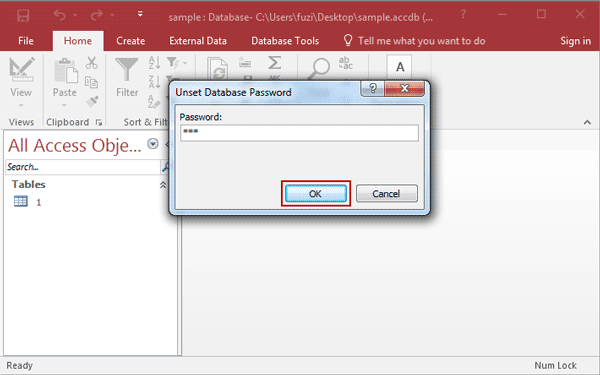
4. Click File > Info > Decrypt with Password, and type password again in Unset Database Password dialog, click OK at last to remove old simple password from access 2016 database.

choose decrypt access 2016 database option

unset access 2016 database password

Tips: However, if you forgot password to unset access 2016 database password, how can you reset access database password? The effective way is to recover access database password first with Access Password Genius. Then you can unset access database password and reset a new one.

5. Click File > Info > Encrypt with Password, type password and verify it on Set Database Password dialog.

Related Articles:

February 21, 2016

How to Remove Password Protection from Access 2016 ACCDB Database

If you remember Access 2016 database password, it would be easy to remove password protection from Access 2016 ACCDB database.

If you forgot Access 2016 database password, probably it would be difficult to remove Access 2016 database password protection while you cannot find forgotten database password.

But don’t worry about that, even though you couldn’t recover access database password with the ways you have used, there is also one access password recovery tool Access Password Genius  that can easily recover forgotten or lost access MDB/ACCDB database password.

Steps to remove Access 2016 database password protection


Step 1: Get iSunshare Access Password Genius and install.

Prepare Access Password Genius trial or full version first according to database password length you forgot or lost. Generally, if the forgotten access password contains no more than 3 characters, trial version is OK and free for you to choose. If not, only full version could help to successfully recover Access database password.

prepare access 2016 database password recovery tool

Step 2: Add access 2016 database into Access Password Genius.

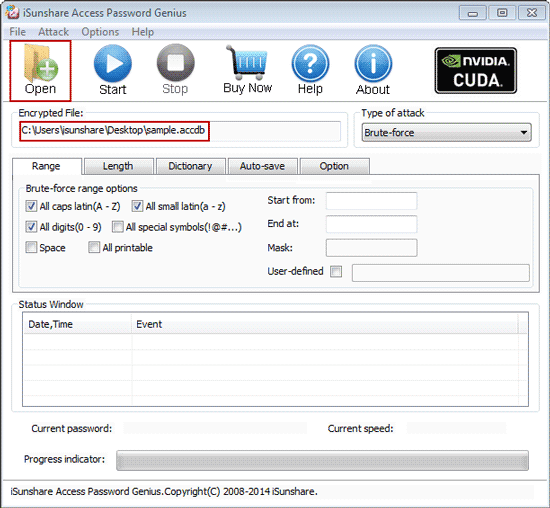
Tap on Open button after launching Access Password Genius, and browse computer to search encrypted Access 2016 database you want to remove password protection.

While you find it, select and click open button to import into Encrypted File box.

add access 2016 accdb database

Step 3: Set password recovery options and recover Access 2016 database password.

start to recover access 2016 database password

1. Click Type of attack and select one appropriate password attack type from drop-down list.

2. Under "Type of attack", set different kinds of password recovery options, including password range, length, Mask, Dictionary path etc. Surely not all of them just only password attack type related options are needed to set.

3. Tap on Start button to begin recovering Access 2016 database password.

If there is no settings wrong above, instantly imported Access 2016 database password will be recovered successfully, about few seconds later.

recover access 2016 database password successfully

On pop-up dialog with Access 2016 database password, click Copy and Open button, and you can open Access 2016 database password with recovered password.

However, if you remove password protection from Access 2016 database right now when you open it, it would be failed. Only Access database is open with Open Exclusive mode, can you successfully remove database password or unset access database password.

So the right way to remove Access 2016 database password protection should be like this.

1. Copy and save access database password after recovering with Access Password Genius.

2. Run Access 2016 and click File > Open > Browse to search encrypted access 2016 database on computer.

browse access 2016 database in access 2016

3. Select access 2016 database and open mode Open Exclusive in Open window.

open access 2016 database with open exclusive mode

4. Type recovered password while Access 2016 asks.

type recovered password to open access 2016 database

5. Click File > Info > Decrypt Database, and type recovered password again on Unset Database Password dialog and click OK.

decrypt opening access 2016 database

remove access 2016 database password protection

If there is no message prompting you, it means that you have successfully removed password from Access 2016 database.

Tips:

It is worth mentioning that, Access Password Genius also helps to recover Access 2013/2010/2007/2003 database password. So if you want to remove password protection from Access 2003-2016 database, no matter it is .mdb or .accdb file, you could use Access Password Genius. 

Related Articles: