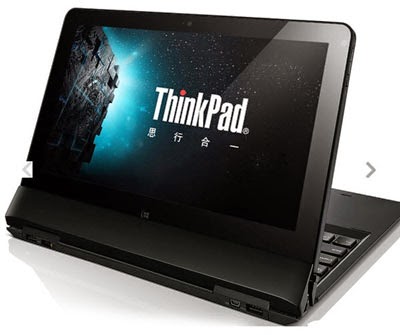
 Windows 8 admin password forgoton ThinkPad laptop? How to log on to ThinkPad laptop with Windows 8 again?
The ThinkPad laptop installed with Windows 8 is
popular for us because of its high quality. When we are enjoying the computing
life with ThinkPad laptop, sometimes a lot of problems appear in front of us,
Windows 8 login password forgotten included in them. Here we will give you a full detail of the
solution.
- Another Admin Account Log on to ThinkPad Windows 8
- Recover ThinkPad Windows 8 Password with Reset Disk
- Reset ThinkPad Forgotten Windows 8 Password in Safe Mode
Solution 1: Another Admin Account Log on to ThinkPad Windows 8.
Admin accounts could be created during Windows 8 OS installation or after you access Windows 8. So there may be not only one admin account you have. Log on to Windows 8 with another administrator is a convenient way to reset other forgotten password.
On the Windows login screen, press Ctrl + Alt + Del to switch user. Type Windows 8 login password and press Enter to log on to ThinkPad laptop.
After you successfully access Windows 8, follows the route, you can change the forgotten password.
Settings – Change PC settings – Users – Change
local password
Solution 2: Recover ThinkPad Windows 8 Password with Reset Disk
Reset disk had better have been prepared before ThinkPad Windows 8 password forgotten. It is the convenient and easy way if another account doesn’t work. If you don’t have password reset disk before, Windows Password Genius Advanced can be used to create new one instantly.
When you get password reset disk ready, type incorrect password on the Windows login screen. A message “Reset Password” will prompt you to reset password with reset disk. Click the link and insert your reset disk device into ThinkPad laptop. Choose the device you plug into laptop and press Next. Click Next and type current user account password on Forgotten Password Wizard.
Tips: How to create password reset disk before and after laptop locked.
Solution 3: Reset ThinkPad Forgotten Windows Password in Safe Mode
From the above introduction, Windows 8 OS has a built-in administrator account without password that is created during Windows installation, and disable by default. We need to enable that account before forgetting other admin account password. Otherwise, your built-in administrator account won’t appear in the screen.
Step 1: Start your computer and press “Shift + F8″ while the computer boots up. Scroll down to “Safe Mode with Command Prompt” with the arrow keys on the keyboard and press “Enter.” Your computer starts in Safe Mode with Command Prompt.
Step 2: Select the Administrator account that appear in the screen, then enter command prompt. Type: net user <name> 123 and press Enter (<name> is the account name which password you need to reset, 123 is the new password), it will show you a message that the command completed successfully.
Step 3: Restart your computer, then you can log in as <name> with the password 123. You can go to Control Panel to change your account password if necessary.
If you try the above solutions and they don’t
work, Windows Password Genius Advanced can still help you reset Windows 8 forgotten password without disk.
First, create a password reset disk with it. Second, reset ThinkPad Windows 8
password with bootable password reset disk.
Windows 8 Password Reset Topic:
Windows 8 Password Reset Topic:


